

Playlists
One-click playlists
You do not have to start every playlist from a blank form. The Stats page turns your top artists, genres or decades into a playlist in a few clicks, and the Discover page suggests ready-made playlists computed from your library. Both produce ordinary smart playlists that you can rename and edit afterwards.
Quick create from the Stats page
The Release era, Top genres and Top artists cards on the Stats page each carry a Quick create a playlist button in their title row.
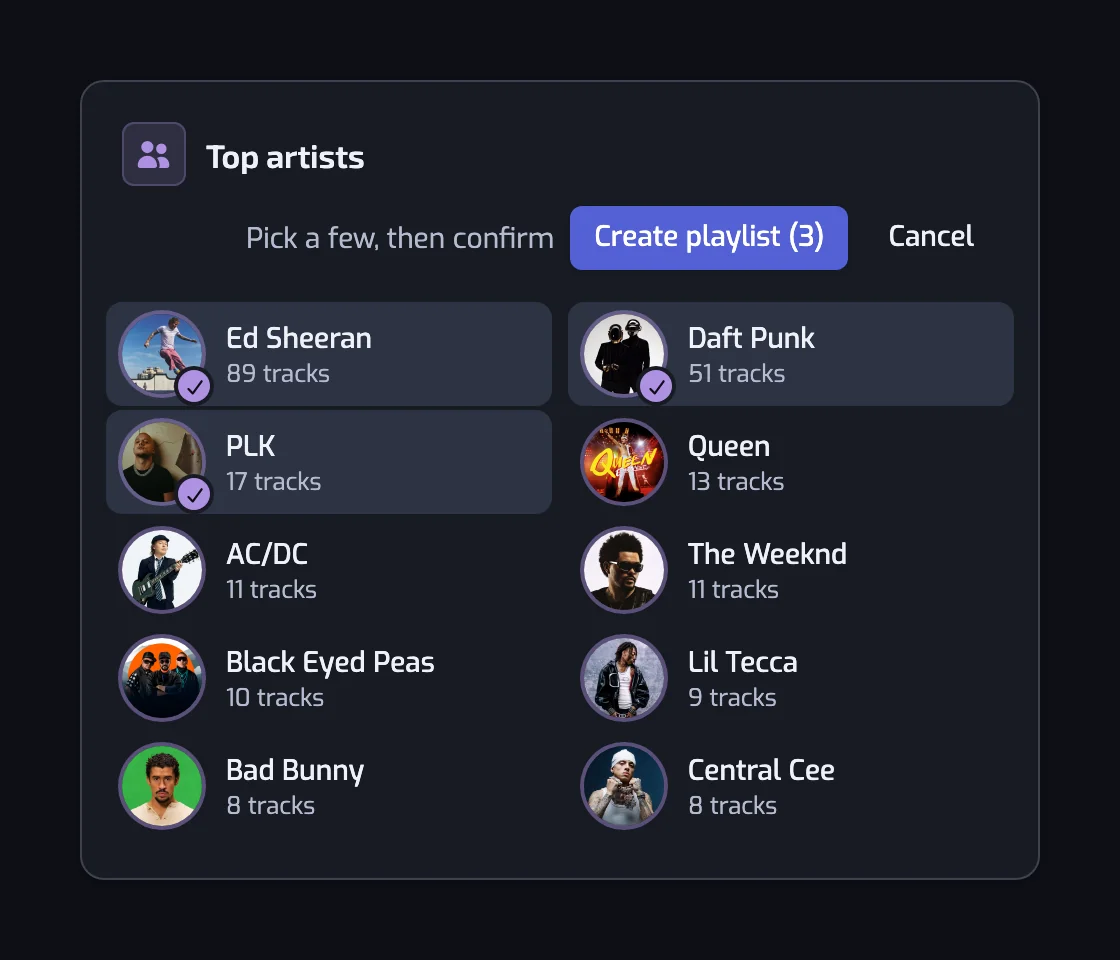
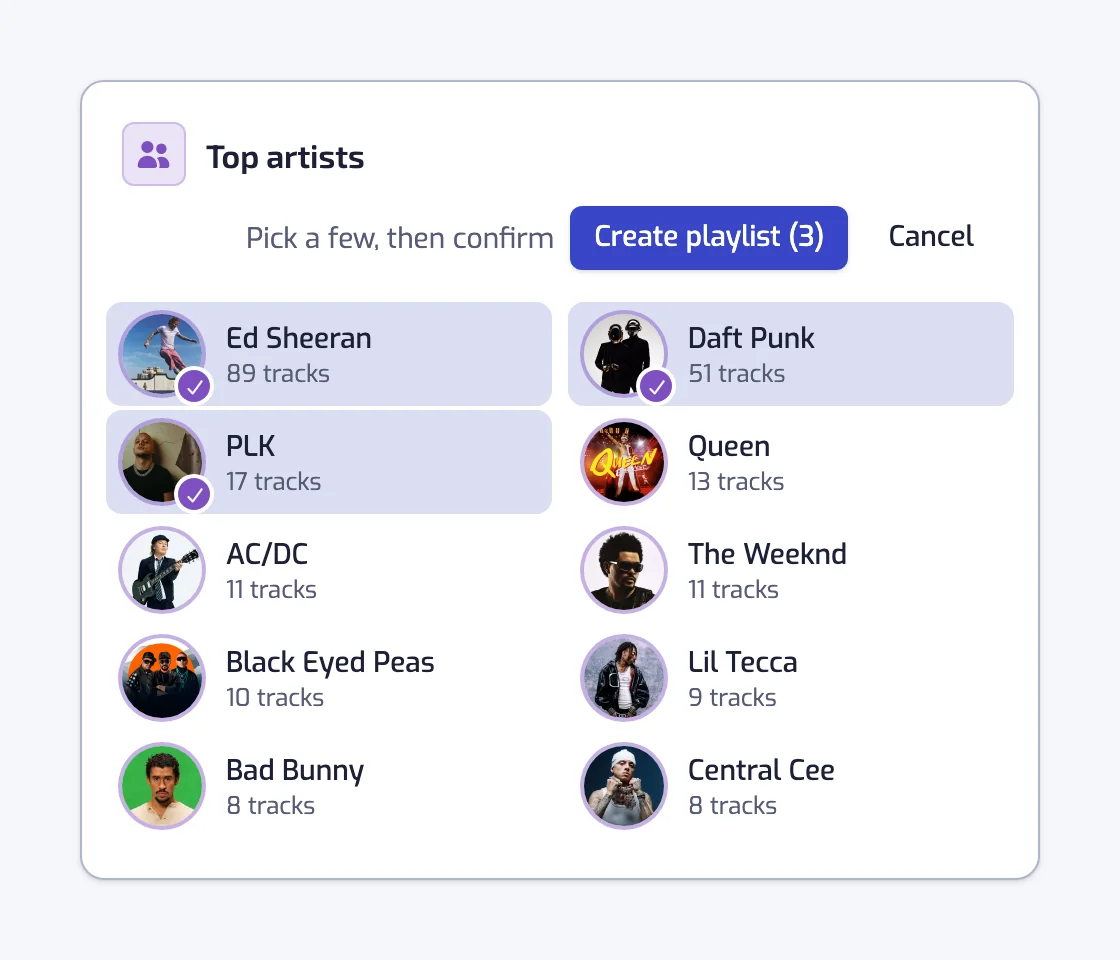
- Click Quick create a playlist. The card switches to selection mode and reads Pick a few, then confirm.
- Click the artists, the genres or the decades you want. A check mark appears on each one and the button counts them: Create playlist (3). Cancel leaves selection mode.
- Click Create playlist (3). The create page opens on its filter form, filled in.
What is filled in:
- The name. The selected names joined: Daft Punk & Justice for two, Daft Punk, Justice & Air for more. Genres are capitalized: Indie rock & Shoegaze. Decades read 80s & 90s.
- The filters. The track artist is one of Daft Punk, Justice (operator Is one of), or The track artist is tagged with one of indie rock, shoegaze. Decades give one Release date filter each, Release date: The 80s (1980–1989), joined with OR when you picked several.
Nothing is created yet. Add more filters if you like (a Release date or an Energy filter narrows an artist playlist), then click Create playlist. The playlist keeps that name unless you change it in the Playlist name field. From there it behaves like any playlist: see Creating a playlist.
Two limits: the Top genres card lists your six most-liked genres, so only those six can be selected; and when every playlist slot of your plan is used, the create page shows the quota warning and Create playlist stays disabled.
Suggested playlists on the Discover page
Discover is where you land after your first sign-in, and it stays in the navigation afterwards. Its subtitle says what it does: smart-playlist ideas built from your library. Pick the ones you like and Playlistation creates them.
How suggestions are computed
Playlistation reads your Liked Songs, up to the number of tracks your plan monitors, and builds a batch of ready-made playlists:
- Collaborations. Up to three groups of two to four artists credited together on at least two of your liked tracks, named Vald & Orelsan. Filter: Artist, Is one of.
- Top artists. Your five most-liked artists, one playlist each, named after the artist.
- Decades. Up to three release decades with more than three tracks, named 1990s. Filter: Release date.
- Genre families. Up to three, built from the genres that go together in your library, then narrowed to the corner of it you actually live in. The name is the family plus what it found: Reggaeton · Your hits · September 2026, French house · 2007–2013, Soft pop · Calm. When nothing inside a family is nameable the family alone is the suggestion, named Reggaeton. Filters: Artist genre, Any of, plus up to two of the dimensions below.
- Recent releases and recent likes. Releases of the week, Released last month, Released in the last three months, Released in the last six months, and their Liked counterparts (Likes of the week, Liked last month, and so on), each kept only when the period holds more than three tracks. Filters: Release date and Liked date.
- Crowded corners of your library. Up to three per batch, found by looking for groups of tracks in your library that share a sound or a period. Every filter it produces is a Between range, so what comes out is an ordinary smart playlist you can edit. The name is built from the words for the bands it found, joined with " · ": Fast · High-energy, Acoustic · 2015–2018, Deep cuts · March – July 2019. Filters: whichever dimensions turned out to describe you. Track popularity, Artist popularity, Release date and Liked date are measured on every plan; Tempo (BPM), Energy, Positiveness, Danceability, Acousticness, Instrumentalness, Speechiness and Liveness come from Spotify's audio analysis and are measured on every plan too. It often finds nothing, by design: a suggestion appears only when its tracks are clearly alike. The playlist you create holds exactly the tracks its card counted.
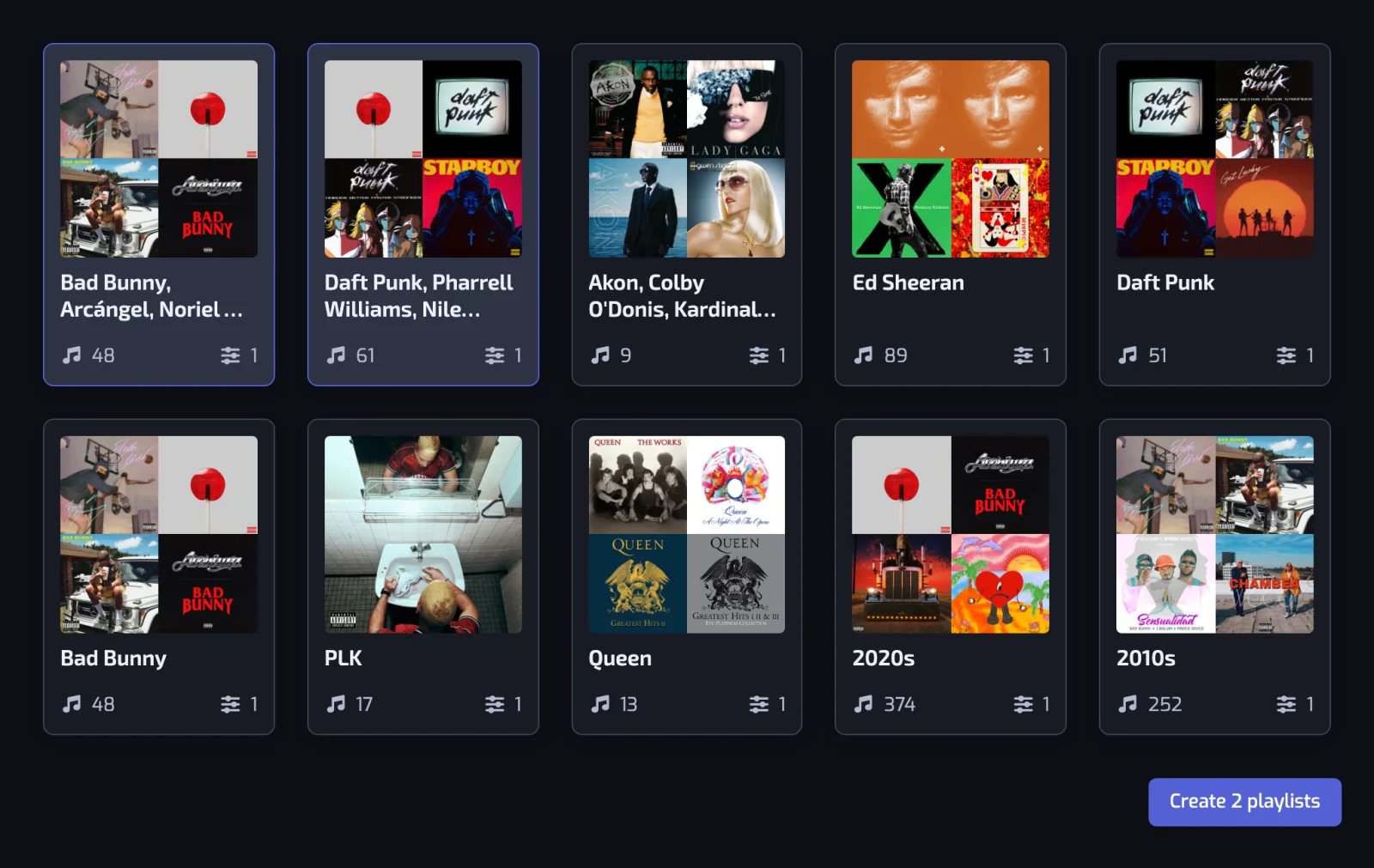
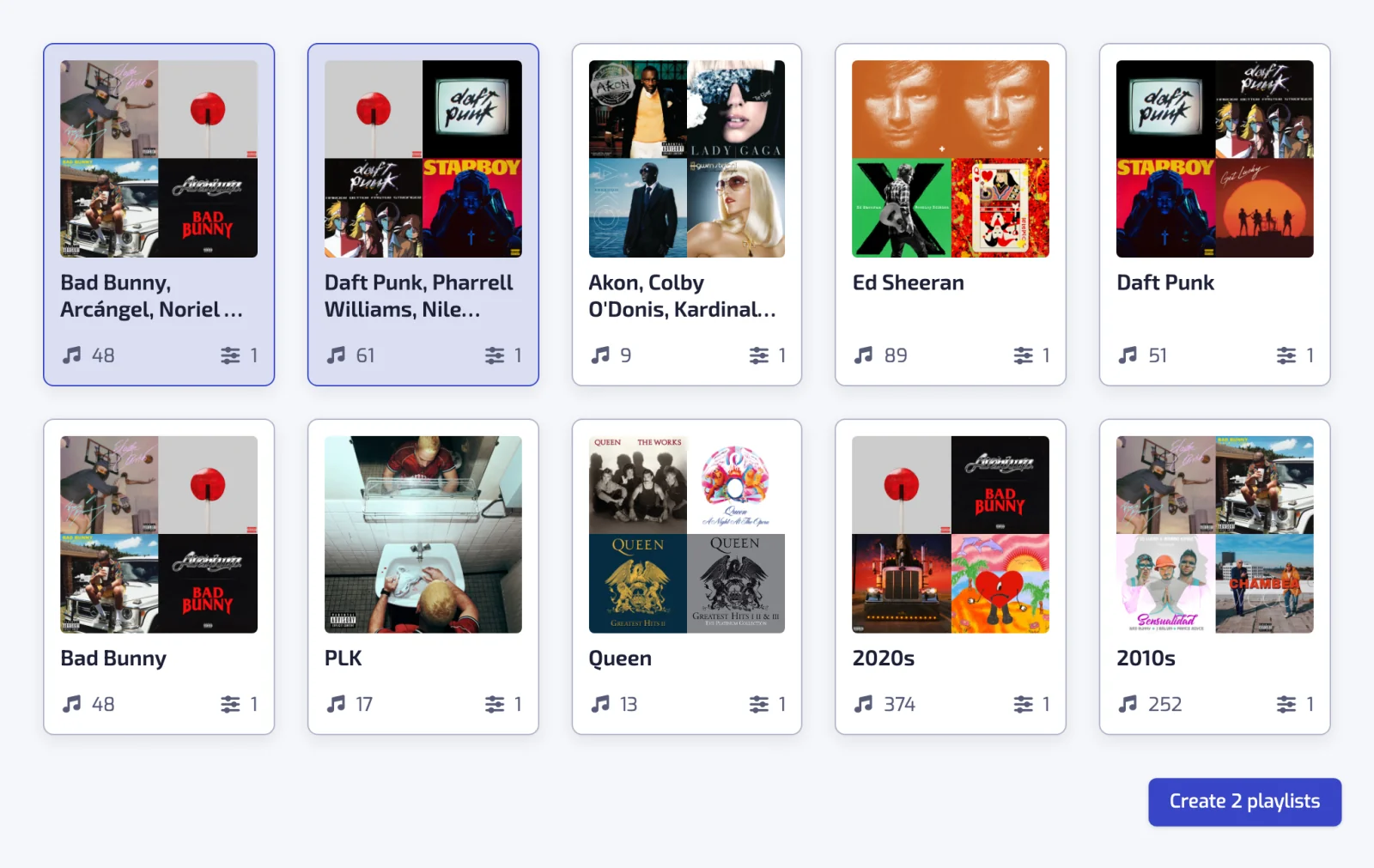
Each suggestion is matched against your library as it is built: the card shows the number of tracks it would contain, a cover made of up to four album covers, a button that previews it, and in List view the filter itself, for example Tracks by Vald or Orelsan.
A batch arrives in two parts: the quick suggestions appear first, and the rest follow. The dashed card with a spinner stays until both are done.
A batch is computed when you sign in and by a daily job. It is then kept for 30 days: the next sign-in or the next daily run after that replaces the whole batch, including the suggestions you already used, with a fresh one computed from your library as it is then. While a batch is being computed, the page shows a dashed card with a spinner. If nothing came out of your library yet, it reads No suggestions yet.
Previewing a suggestion
Every card carries a round eye button, separate from the card itself. It opens a dialog with the suggestion's name, its filters, shown as on the playlist page but read-only, and the liked tracks it would gather, each track, artist and album linking to its page on Spotify, and from there you can create that playlist directly. The list and its count are computed when you open the dialog, not read back from the batch, so a moving window like Likes of the week shows what the playlist would hold today rather than what it held when the batch was built. When more than 100 tracks match, the dialog shows the first 100. The button works on cards you cannot select too: the ones you have already used, and all of them once your plan has no free slot left.
Picking several
Click a card, anywhere but its preview button, to select it; click again to drop it. The button reads Create 2 playlists with the current count. You can select at most as many suggestions as you have free playlist slots left on your plan; once that many are selected, the other cards stop responding, and when no slot is left the page shows the quota warning. On your first visit there is also a Skip button, which takes you into the app without creating anything. You can come back to Discover at any time.
What happens next
Each selected suggestion becomes a real playlist: it is created on your Spotify account, private, with the Playlistation description, and its first sync is queued, exactly as if you had built it on the create page. Two messages confirm it: "Playlists created with success" and "Your playlists will automatically be synced with your new likes on Spotify". The cards you used are marked as used: they stay highlighted and cannot be picked again until the batch is replaced.
The new playlists appear under Playlists and in the sidebar. Open one to rename it, add filters or delete it, like any other. See Creating a playlist and How syncing works.