

Troubleshooting
Why a Playlistation playlist is not updating on Spotify
A Playlistation playlist that stops updating on Spotify is dimmed, parked after an error, paused by Spotify or waiting its turn. Find what you see, then the cause and the fix.
A playlist is dimmed with an orange icon
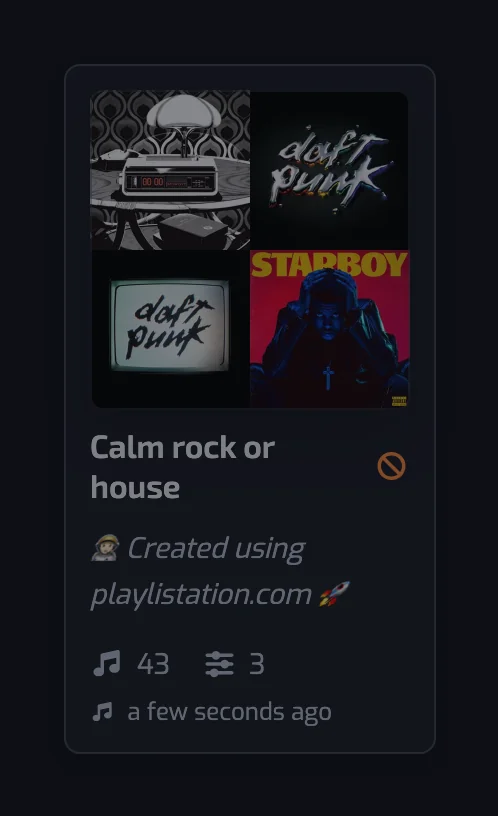
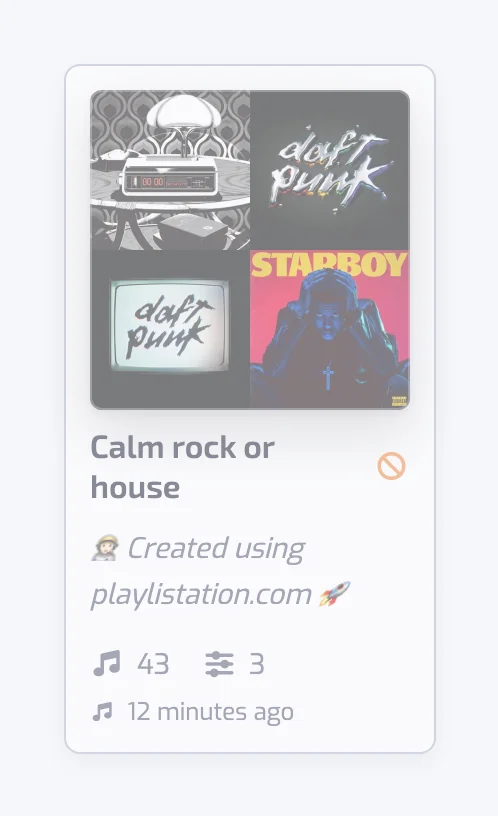
The card is dimmed, with an orange "not updating" icon (a circle with a slash) next to the name: the playlist is not being updated.
You cannot edit it. The playlist is over the Free plan's quota of 5, usually after a paid plan ended. Playlistation keeps the oldest playlists active up to the limit and disables the rest. Delete a playlist you no longer need, or upgrade; disabled ones come back as soon as a slot is free.
You can edit it. The playlist is parked for something only you can clear: a filter holds a value Playlistation cannot evaluate, or your Spotify connection is gone (see The app asks me to reconnect Spotify and my playlists stopped updating). Open the playlist and edit it, a filter or even its name: there is no save button, every edit is saved at once and puts it back into the update rotation. One case needs nothing from you: when a banner says Spotify can't send us your liked songs, editing does not help.
A banner says Spotify can't send us your liked songs
On a few accounts with very large libraries, Spotify itself cannot send Playlistation your Liked Songs: every attempt fails on Spotify's side. When that lasts, Playlistation pauses your playlists, dimmed with the orange "not updating" icon like other parked playlists and still open to you, and shows a banner on the Playlists and Discover pages: Spotify can't send us your liked songs right now, so your playlists are paused. We check again every day and resume them as soon as it works.
There is nothing to do on your side, and editing a filter does not help: the playlist is paused again. Only Spotify can fix it. Playlistation checks every day and, as soon as Spotify serves your library again, puts your playlists back and queues an update for each.
The playlist says Syncing or Waiting for first sync for a long time
Waiting for first sync means the first run is queued; Update queued means a filter edit has queued a run that has not started yet. First sync…, Syncing… and the step names (Reading songs… through Updating Spotify…) mean it is running, and the page updates live, with how far the step has got when it can be counted. Playlists are updated in turns, so one can wait up to your plan's interval before its next run, and a temporary Spotify failure is retried. Well past your interval, edit one of its filters to queue a fresh run (a rename does not start one). In the installed app, pull down from the top of the page to reload it.
Common questions
Why is my smart playlist not updating?
A Playlistation smart playlist stops updating when it is dimmed with an orange icon (over the Free plan's 5 playlists, or parked after an error), when its Spotify connection is lost and the app asks you to reconnect, when a banner says Spotify can't send us your liked songs, or when it is still waiting its turn: once a day on Free, every hour on Plus, in under 30 minutes on Pro.
Editing any filter queues a fresh run, except while that banner is up.
Still stuck? Write to us in the app's chat, described in Giving feedback, with the playlist name and what you expected.