

Playlists
Creating a playlist
To create a smart playlist, open Playlists, click Create playlist, pick a filter, set it and click Create playlist again. Playlistation creates the playlist on your Spotify account, fills it from your Liked Songs and keeps it up to date as your likes change.
Create a playlist step by step
1. Open the create page
Open Playlists in the sidebar and click Create playlist. On a phone, tap the + in the middle of the bottom bar.
The Free plan holds 5 playlists; Plus and Pro have no limit (see Plans and billing).
2. Pick a filter
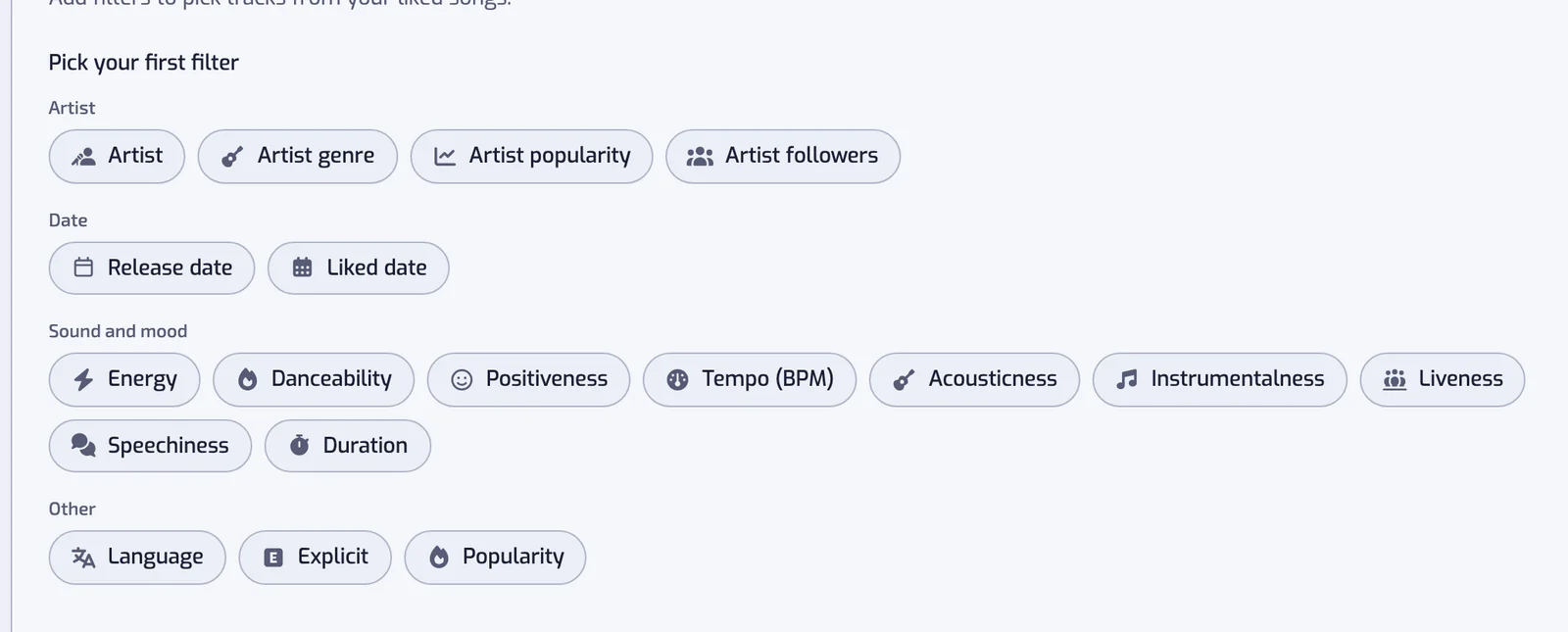
Under Pick your first filter, click the kind of tracks you want: an artist, a genre, a decade, a tempo, a mood and more. Every filter is available on every plan, and each one has its own page.
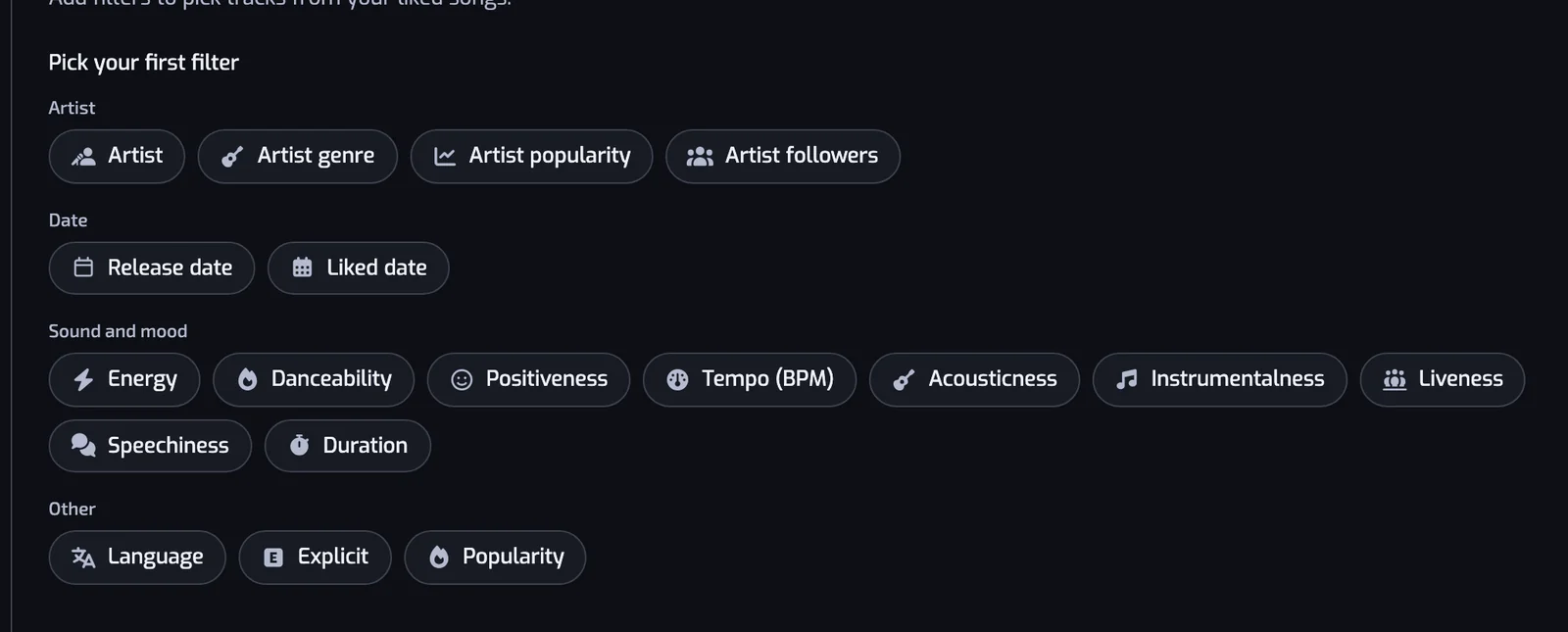
3. Set the filter's value
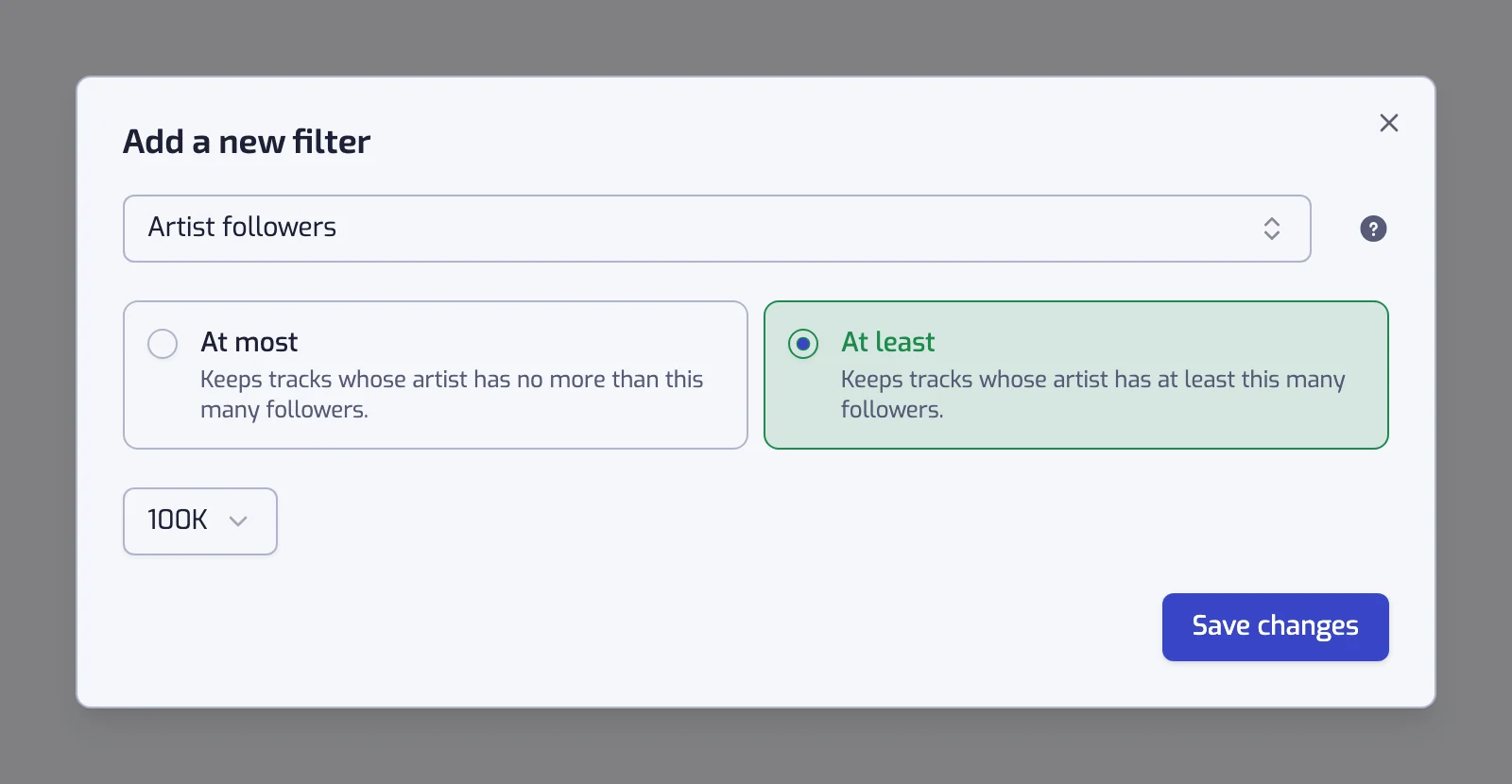
Choose the filter's value in the dialog, then click Add filter. The value is artists or genres from a list, a range on a slider, or dates. Some filters also ask how to compare, such as Any of or None of.
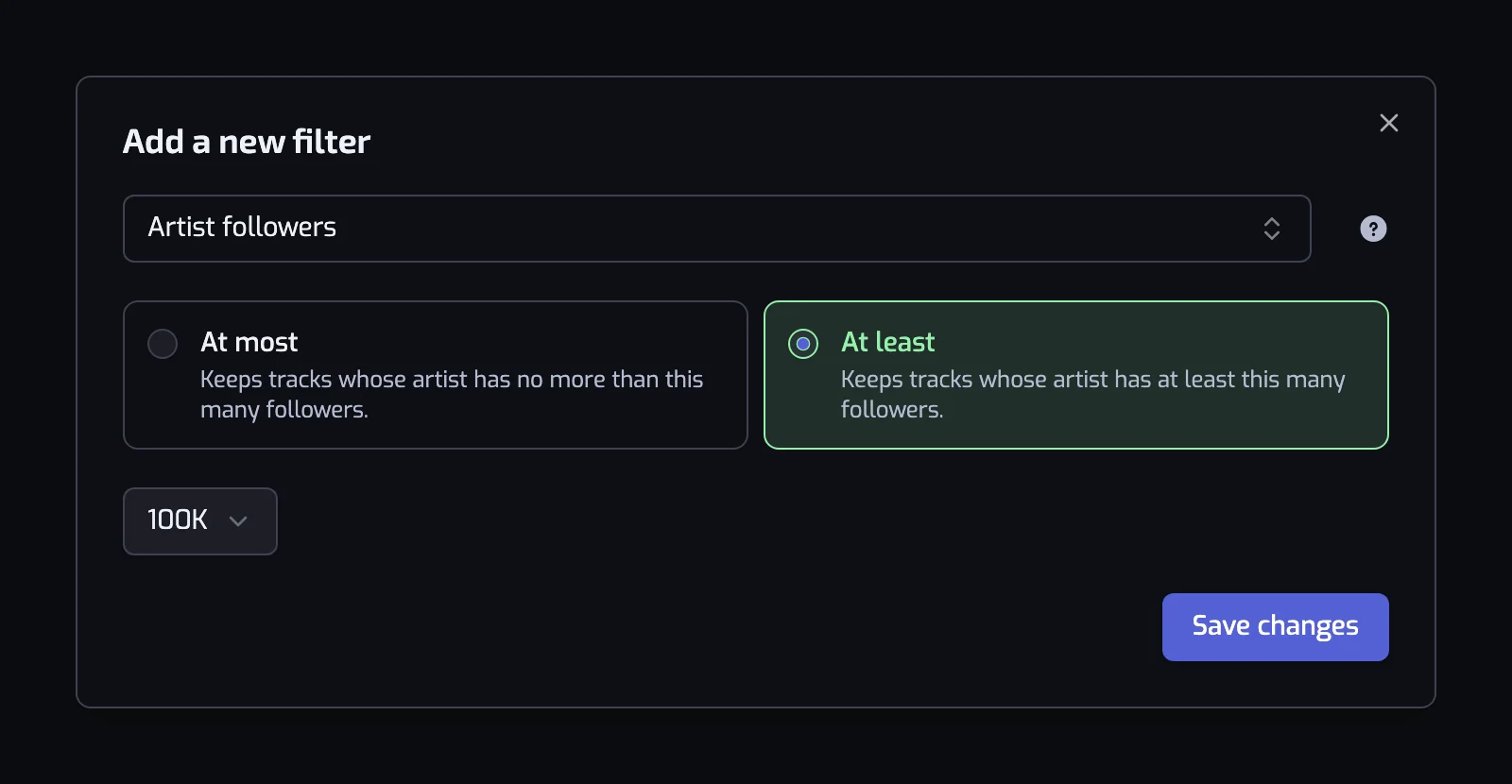
4. Add more filters (optional)
Click Add filter to narrow the playlist: a track has to pass every filter. Each filter reads as a sentence, such as The track artist is one of Ed Sheeran. To keep tracks that pass one filter or another, see Combining filters. A playlist can hold as many filters as you like.
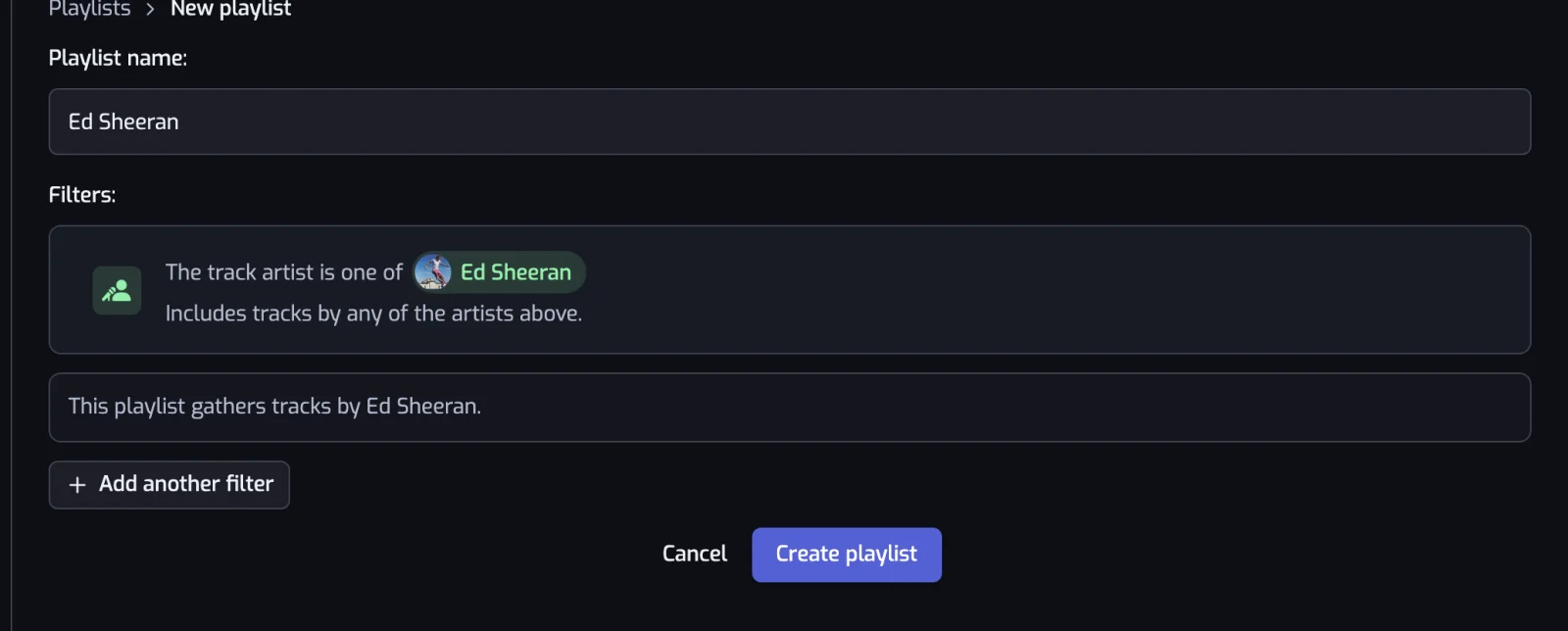
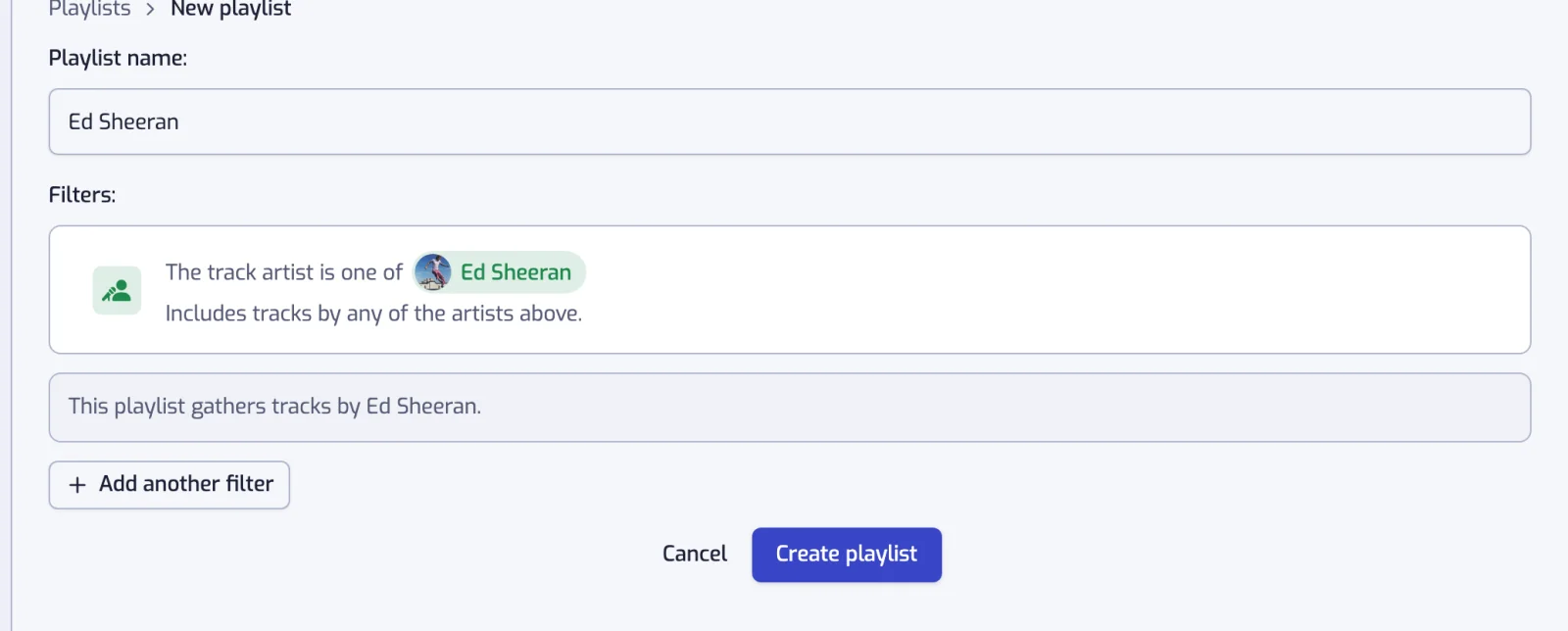
5. Click Create playlist
Type a name under Playlist name, or leave it empty and Playlistation names the playlist after its filters. Click Create playlist. The button stays grayed out until the playlist has a filter.
6. Let the playlist fill
The playlist page opens. Playlistation creates a private playlist on your Spotify account and fills it; the tracks appear on the page on their own, without a refresh. Click Play on Spotify to open it in Spotify. From then on, the playlist follows your likes (see How syncing works).
To rename it or change its filters, see The playlist page. To see which tracks are in, which are out and why, see Results.
Other ways to start a playlist
- From the Stats page: pick decades, genres or artists in a chart and create a playlist from them. See One-click playlists.
- From the Discover page: suggestions built from your library, created in one click. See Suggested playlists.
Find your playlists later
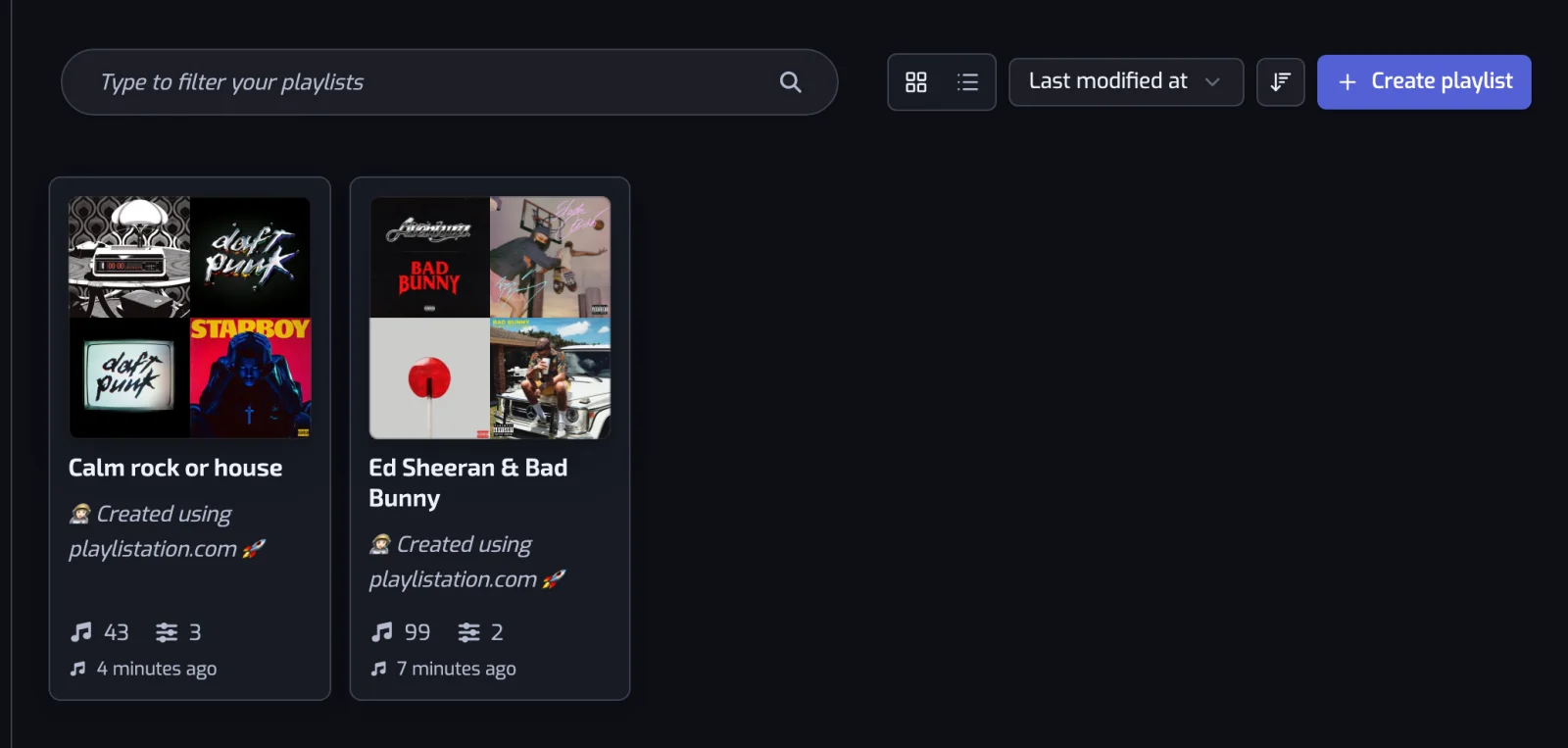
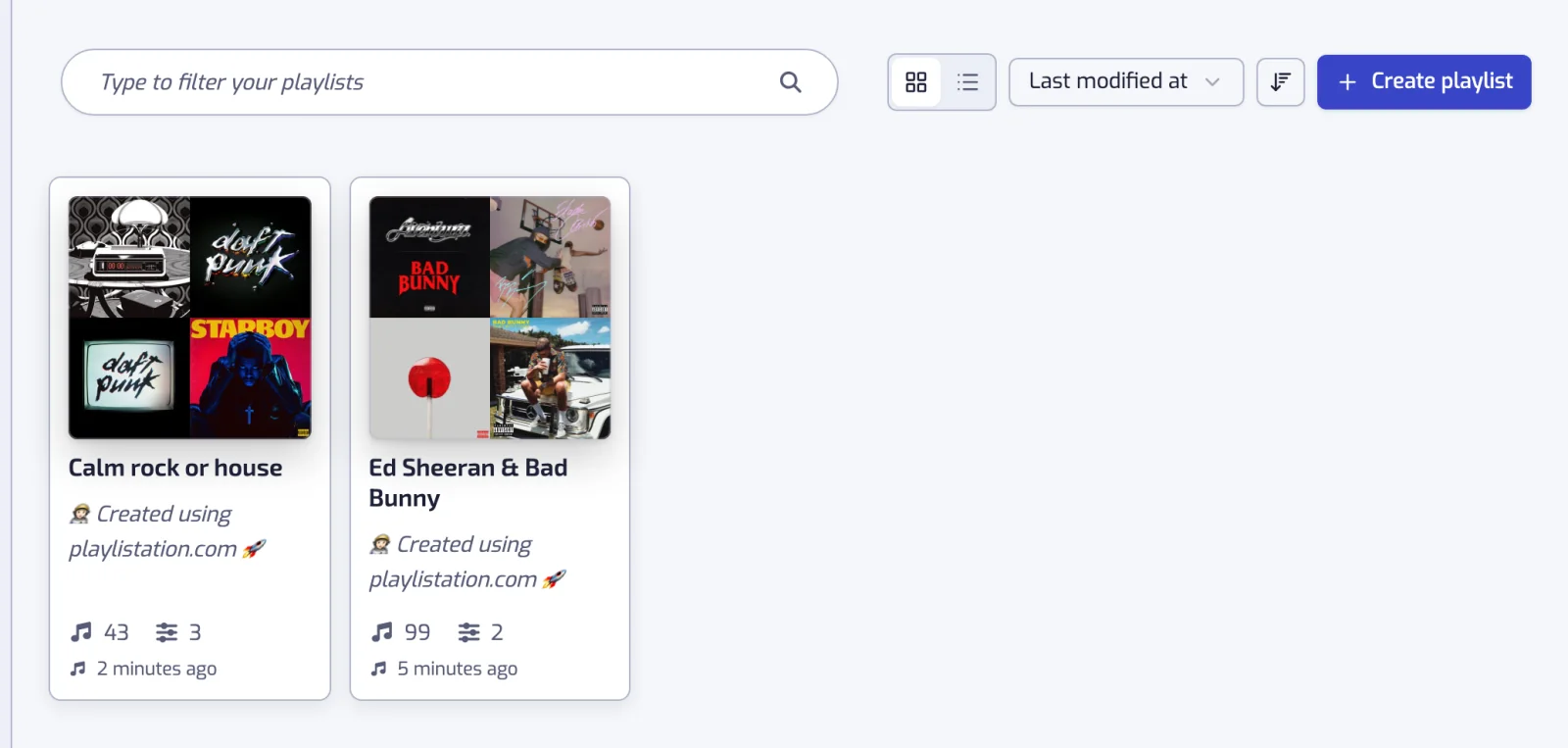
Open Playlists in the sidebar to see every smart playlist as a card with its cover, name, track and filter counts, and last sync. Click a card to open its page. Search, switch between Grid view and List view, and sort by name, number of filters, number of tracks or last change. The eye button on a card opens a read-only preview of its filters and tracks.
A dimmed card with a "not updating" icon is a playlist that is not being updated: over the Free plan's 5 playlists, or stopped by an error until you edit it (see Troubleshooting).
Common questions
How many smart playlists can I create?
The Free plan allows 5 smart playlists; Plus and Pro have no limit. Once you have 5 on Free, the Create playlist button disappears.
How many filters can a playlist have?
As many as you like, on every plan. A track has to pass every filter, unless you group filters with OR (see Combining filters).
Can I change a playlist's filters after creating it?
Yes. Open the playlist, then edit or delete a filter; the playlist updates right away (see The playlist page).
Is the new playlist public on Spotify?
No. Playlistation creates it as a private playlist. You can make it public in Spotify (see Spotify playlist privacy).