
Getting started
How syncing works
Yes, smart playlists update on their own. Playlistation reads your Liked Songs, runs each playlist's filters over them and makes the Spotify playlist match the result: once a day on Free, every hour on Plus and in under 30 minutes on Pro. This page describes that loop and its limits.
What is read
Your Liked Songs, with the date you liked each track: not your listening history, not what is in your other playlists. A track that is not in your Liked Songs can never appear in a smart playlist. The one other thing read is the list of your playlists, once a day, only to notice when you have deleted one of its own; what is in them is never read. Where each filter gets its data is on its page under All filters.
Which tracks are monitored
Each plan monitors your most recently liked tracks, up to a limit:
| Plan | Liked tracks monitored |
|---|---|
| Free | 1,000 |
| Plus | 3,000 |
| Pro | Your whole library |
If your library is bigger than your plan's limit, older tracks are not seen and cannot land in a playlist. The Playlists page then shows a warning. Each playlist page counts the liked songs a bigger plan would add, next to a See plans button: "This playlist reads your last 1,000 of 4,240 liked songs. Plus would add 2,000 of the rest, Pro all 3,240." Those are liked songs, not matches: Playlistation never reads the songs past your limit, so it cannot tell which of them your filters would keep. New likes are always inside the window; it is the old tracks that fall out. See Plans and billing.
How new likes and unlikes propagate
Every update of a playlist fetches your monitored Liked Songs, evaluates the filters on each one (this also feeds the "why does this track match" detail on the playlist page), then removes from the Spotify playlist the tracks that no longer match and adds the ones that now do. Tracks that still match are left alone.
So a new like shows up in every playlist whose filters it passes (except a local file, which Spotify does not let apps add), and an unliked track leaves them, at each playlist's next update. Spotify does not tell Playlistation when you like something; the app looks on a schedule. It keeps a copy of your Liked Songs between updates, and before each update one request to Spotify reads how many you have and which one you liked last. If either has changed, the whole library is read again, so a like or an unlike reaches each playlist at its next refresh. When nothing has changed, the copy is still read again once it is 6 hours old.
Refresh interval per plan
A background job runs every minute and picks the playlists that have waited longest, so that each one is refreshed on this schedule:
| Plan | Each playlist refreshed |
|---|---|
| Free | once a day |
| Plus | every hour |
| Pro | in under 30 minutes |
These are targets, not exact timers: load or Spotify's rate limits can push a playlist back a little. Creating a playlist, or changing its filters in the app, queues an update right away. A new name or description goes to Spotify at once and needs no update.
Sync now
On the Pro plan, Sync now at the top of the Playlists page skips the wait. It reads your whole library from Spotify again and rebuilds every active playlist: the first one starts at once, the others about a minute later. The app confirms with "Rereading your library. Your playlists update within minutes." It works 6 times an hour; past that, the app says "Sync now works 6 times an hour. Try again later."
The button shows once you have a playlist. On Free and Plus it carries a Pro tag and opens the Subscription page. See Plans and billing.
The Spotify limit of 10,000 tracks
Spotify does not let a playlist hold more than 10,000 tracks. When more of your liked tracks match than fit, Playlistation keeps the 10,000 most recently liked ones and the playlist page shows a warning with the number left out. Narrow the filters if you want everything to fit.
Playlist statuses
A playlist is in one of four statuses. Only the first one is updated.
Active. The normal state: the playlist is in the refresh rotation.
Disabled. The playlist is over your plan's quota, after a downgrade or when a paid plan ends: the oldest playlists keep their slots, the newest are disabled. A disabled playlist is not updated and cannot be opened in the app, but it still exists on Spotify with the tracks it had. It comes back on its own as soon as a slot frees up, when you delete another playlist or move to a paid plan.
Error. Parked for something only you can clear:
- a filter has a value the engine rejects;
- your Spotify authorization stopped working: it reached the six months Spotify allows an app, or you removed Playlistation from your Spotify apps. Playlistation then parks every active playlist. You stay signed in, and the app asks you to reconnect Spotify.
A parked playlist still counts against your quota and still shows in the app. Edit it in the app, a filter or even its name, and it goes back to Active with an update queued; there is no save button, every edit is saved at once. Reconnecting Spotify after a lost or expired authorization unparks them all, and the app says how many are syncing again. Staying connected to Spotify covers how to keep that authorization alive.
Archived. Gone from your Spotify library. See When you delete a playlist in Spotify.
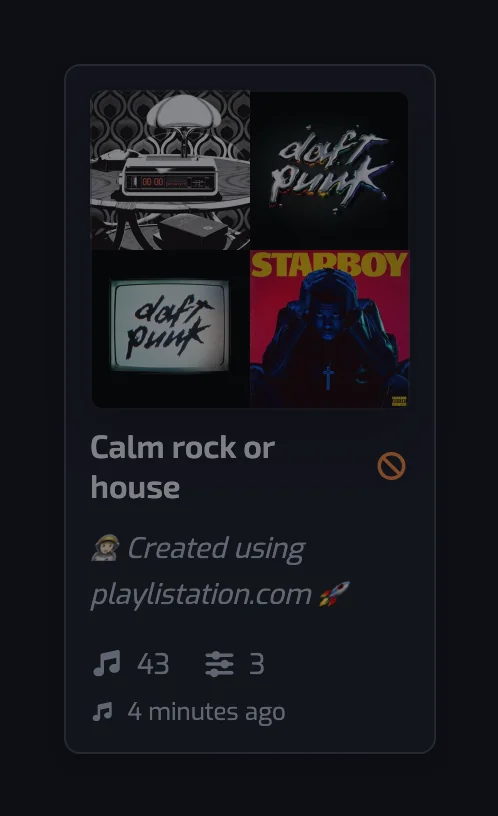
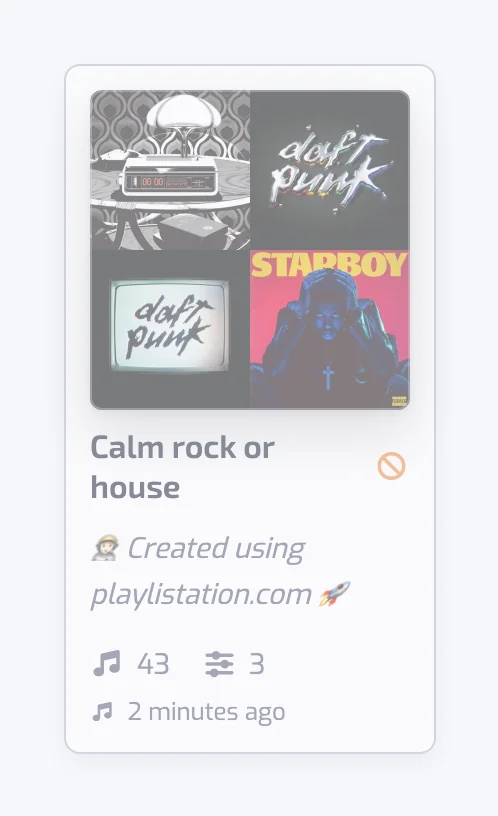
In the playlists grid, a Disabled or Error playlist is dimmed and carries an orange "not updating" icon (a circle with a slash) next to its name; Archived playlists are not listed. Symptom by symptom: Troubleshooting.
The sync pill
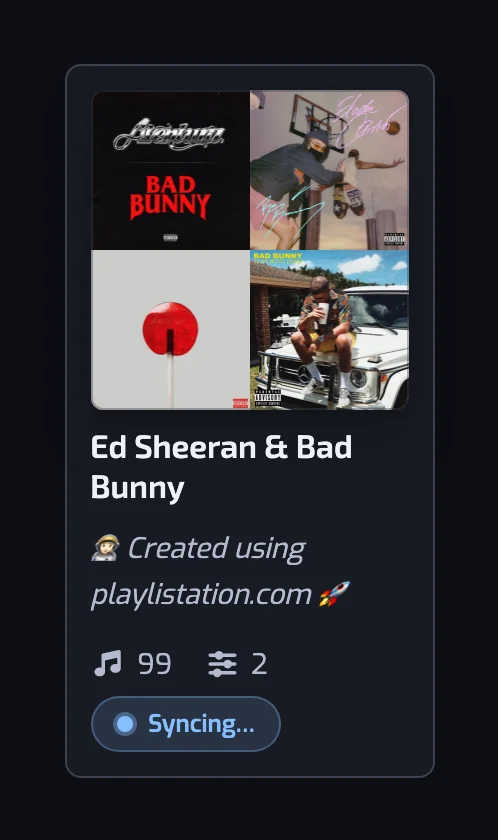
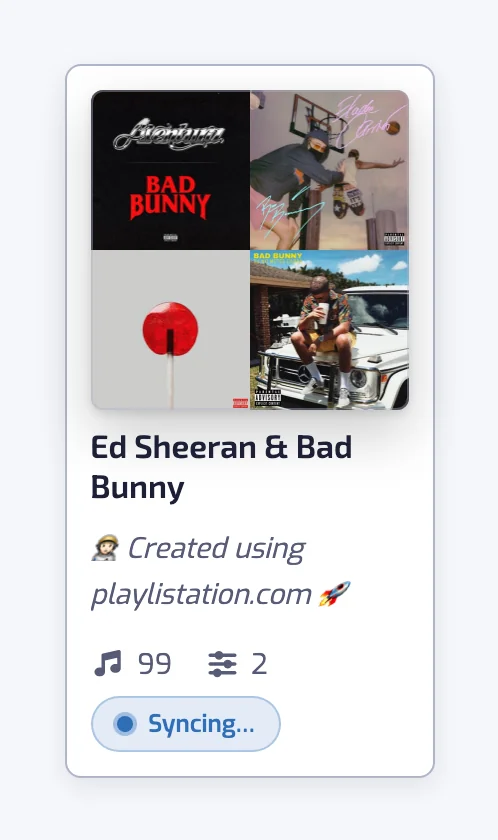
The pill shows the progress of one update, not the playlist's status, and it updates live. On the playlist page and in the grid, it reads Waiting for first sync while a new playlist's first job is queued, and Update queued when a filter edit has queued an update that has not started yet. While an update runs, it names the step the update has reached: Reading songs…, Analyzing tracks…, Applying filters…, then Updating Spotify…. Between updates, the pill is gone: the playlist page shows the last sync under Last synced, and in the grid, the card shows that time in place of the pill. Edit a filter while an update runs and the run starts over with the new filters.
A step that can count its work also shows how far it has got, refreshed about once a second: Reading songs 450/1,000. The numbers are that step's own work, not the size of your library: the tracks read (never more than your plan monitors), the tracks evaluated against your filters, the tracks added and removed on Spotify. Analyzing tracks… counts only what Playlistation has yet to look up — the artists, then the track details some filters read, which on Free are looked up only when one of the playlist's filters needs them — so it passes at once when everything is already known. A step that cannot count its work shows its name alone.
Edits made in Spotify
Cover image: kept. Playlistation never uploads a cover. Set one in Spotify and the app shows it; without one, Spotify's mosaic of the first tracks is used.
Public or private: kept. Playlists are created private. Make one public in Spotify and it stays public.
Tracks: overwritten. A track you add by hand is removed at the next update because it does not match; a matching track you remove by hand is added back. Duplicates are cleaned up too. The exception is a local file from your computer: Spotify lets apps remove a local file only by its position in the playlist, not by its ID like other tracks, and Playlistation leaves it where you put it while the rest of the playlist updates.
Name and description: not kept. A rename made in Spotify is not picked up by Playlistation, and the next time you edit the playlist in the app (a filter, the name or the description), the app's name and description are written back to Spotify. Rename it in the app instead.
Deleting a playlist
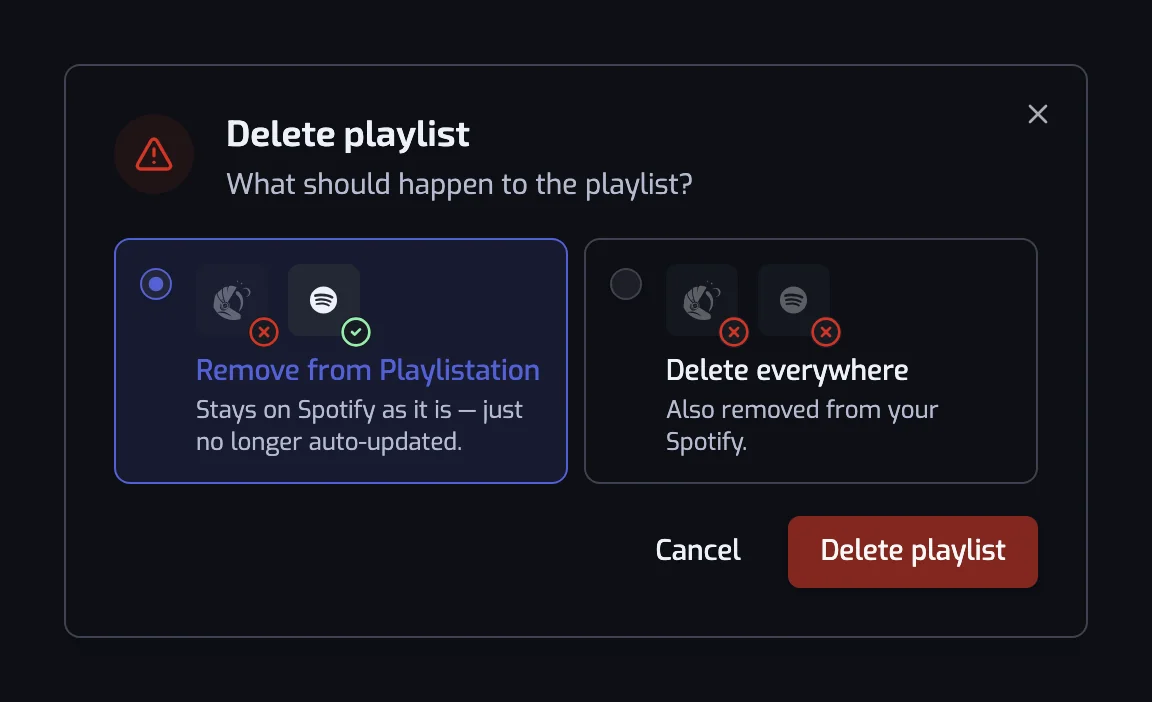
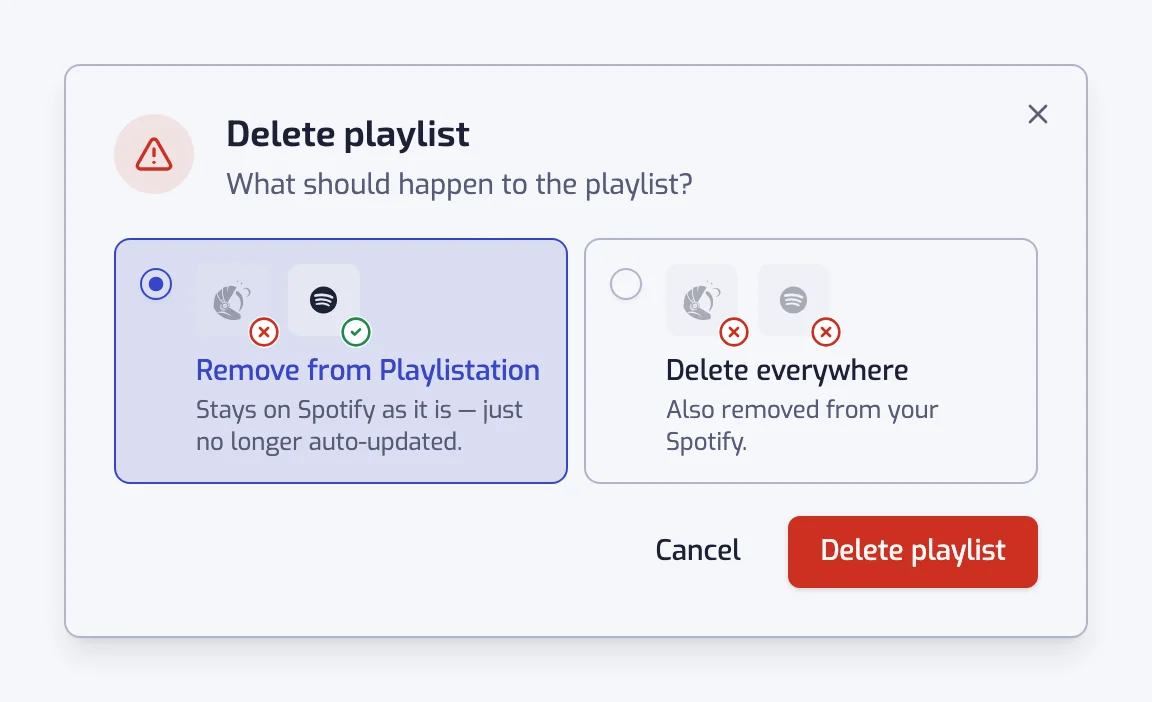
On the playlist page, click the trash icon (Delete) at the right end of the name's row, at the top right of the page. The dialog, titled Delete playlist, asks what should happen to it:
- Remove from Playlistation: it stays on Spotify with its current tracks, as an ordinary playlist that is no longer updated.
- Delete everywhere: it is removed from Playlistation and from your Spotify library.
Confirm with Delete playlist. The pre-selected choice is the Default choice setting under Settings, Playlists (see Settings). Deleting frees a slot, so a Disabled playlist, if you have one, becomes Active again.
When you delete a playlist in Spotify
You can delete a smart playlist from Spotify like any other. Once a day, Playlistation compares its list with your Spotify library and archives the playlists that are no longer there; an update that finds one gone archives it at once. An archived playlist disappears from the app, no longer counts against your quota, and is not recreated.
If you save a change to the playlist in Playlistation before it is archived, Playlistation creates it again on Spotify instead: a new Spotify playlist with a new link, which the update that follows fills. Whoever followed the deleted playlist does not follow the new one.
Common questions
Do the playlists update automatically?
Yes, with nothing to do on your side. Each playlist is refreshed once a day on Free, every hour on Plus and in under 30 minutes on Pro, adding the liked songs that now match and removing the ones that no longer do; Pro can also refresh on demand with Sync now.
Can Playlistation build a smart playlist from another playlist instead of my Liked Songs?
No. Every smart playlist draws from your Liked Songs and nothing else: Playlistation does not read the tracks in your other playlists, the albums you saved or your listening history. To get a track into a smart playlist, like it in Spotify.
Can a smart playlist hold more than 10,000 tracks?
No. Spotify caps every playlist at 10,000 tracks. When more of your liked tracks match, Playlistation keeps the 10,000 most recently liked and the playlist page tells you how many it left out.
What happens to a liked song that Spotify shows greyed out?
Playlistation does not check whether a track is playable in your country. It treats a greyed-out liked song like any other: if the song passes the filters, it goes into the playlist, and whether you can play it there is up to Spotify, as in your Liked Songs.