

Playlists
Playlist history
A smart playlist changes on its own, which is the point of it and also the reason a track can disappear without you touching anything. The history is the record of that: every update that moved a track, every filter you edited, and for each track that left, the reason it left.
It is per playlist, it is on every plan, and it is read-only — nothing here can be undone from this screen.
Opening it
On the playlist page, the row that starts with Play on Spotify ends with three icons: Copy Spotify link, History and Delete, each named in a tooltip when you hover it. Click History, the clock with an arrow turning back. A panel slides in from the right; close it with Escape, the cross, or a click outside. The playlist page underneath keeps working, so nothing is lost by opening it.
Reading the timeline
Entries run newest first. Each one carries an icon, a one-line summary, how long ago it happened — hover the relative date for the exact day and time — and a set of counters.
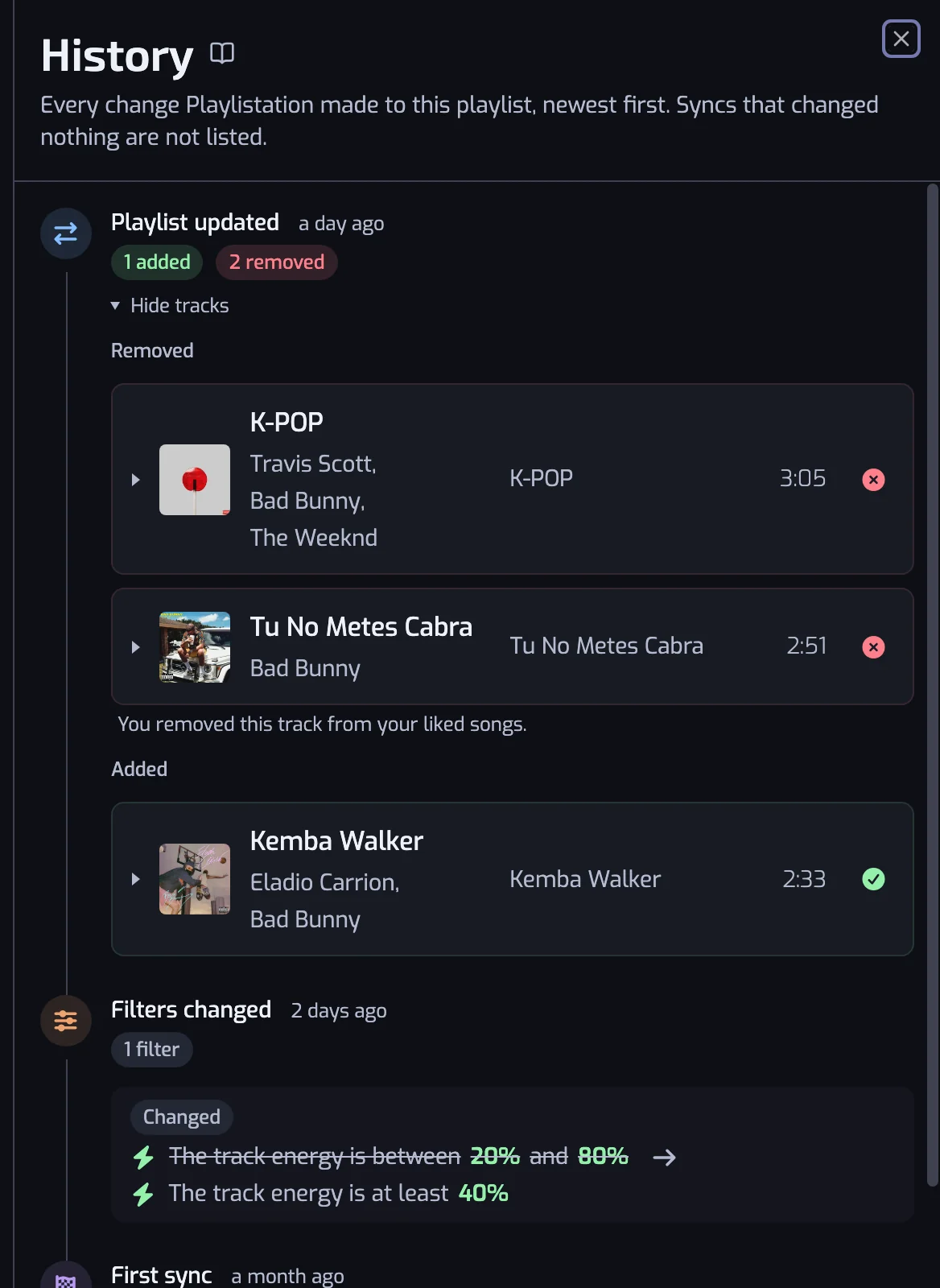
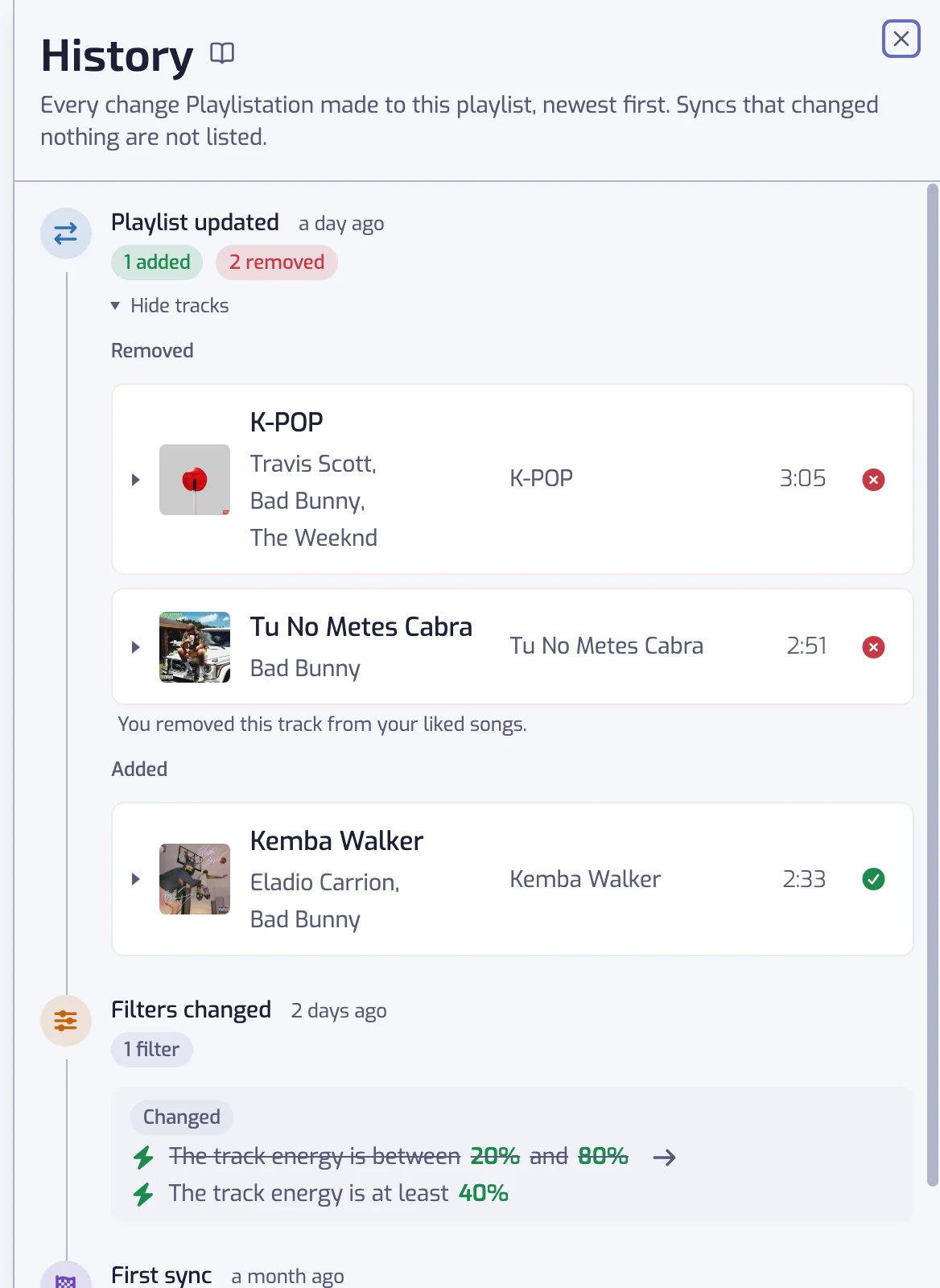
Four kinds of entry:
| Entry | What it means |
|---|---|
| First sync | The update that filled the playlist. Every track is an arrival, so the count is the whole playlist. |
| Playlist updated | An update that moved tracks: some arrived, some left, or both. |
| Filters changed | You edited the filters. Usually the cause of the next Playlist updated. |
| Tracks already in the playlist | The starting point for a playlist that existed before the history did — what it held at its last update before recording began, and the entry carries that update's date. Not an update: those tracks were not added that day, they were simply already there. |
An update that changed nothing is not listed. A playlist is re-evaluated on a schedule — every 30 minutes on Pro, every hour on Plus, every 6 hours on Free (see How syncing works) — and most of those runs find nothing to move. Listing them would bury the entries that matter under hundreds of identical lines.
Click Show tracks on an entry to see the tracks themselves, removals first, each linking to Spotify. The newest entry is open when the panel loads; the others start closed and stay however you leave them.
Why a track left
This is what the history is for. Open Show tracks on an entry to see the tracks under Removed.
It stopped matching a filter. Expand the track and each filter it failed is listed with the track's own value — Energy is between 20% and 80%, and underneath, 5%. A track can fail several filters at once, and all of them are shown rather than one picked as the reason. This is the same explanation the track list on the playlist page gives, kept as it read on the day, so it stays correct even after you have changed or deleted that filter since.
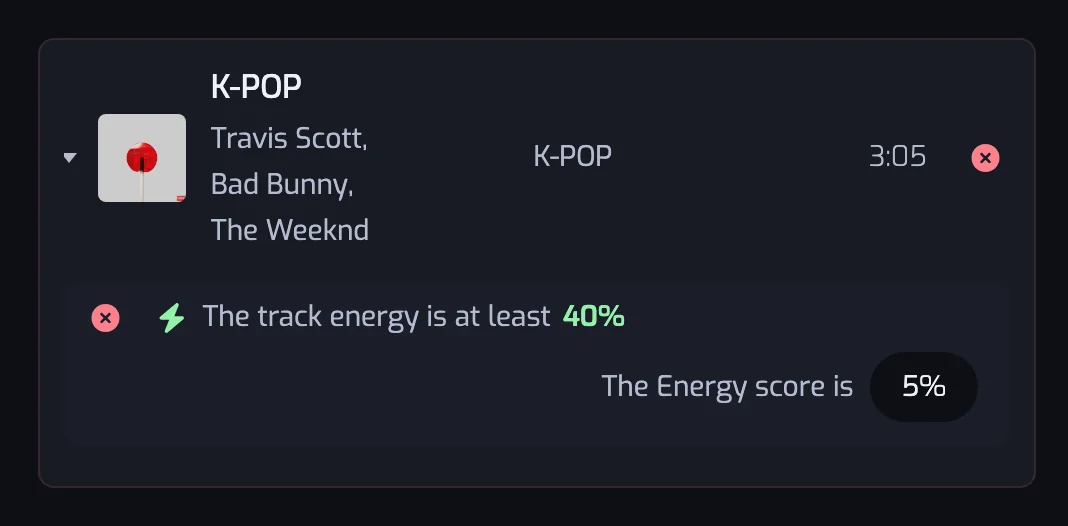
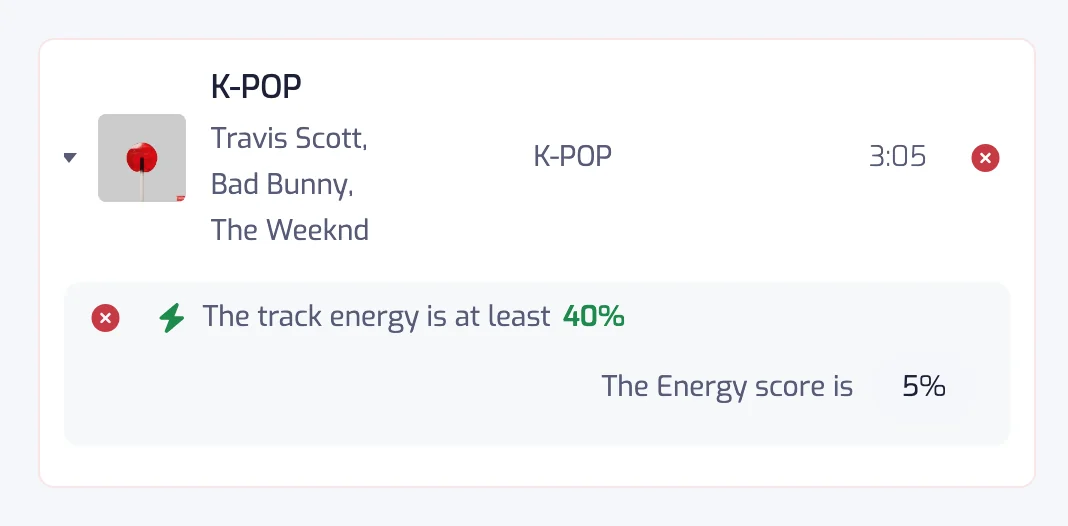
No filter is listed. The track did not leave because of a filter, and the entry does not say which of these happened:
- You unliked it. Playlistation only puts your Liked Songs in a playlist, so a track you remove from them leaves every playlist at the next update. It was not evaluated at all, so there is no filter to show.
- It fell out of the likes your plan monitors. Each plan monitors only your most recent likes: 1,000 on Free, 3,000 on Plus, 50,000 on Pro. New likes push the oldest ones out, and so does moving to a plan that monitors fewer. See Which tracks are monitored.
- The playlist is full. Spotify allows 10,000 tracks in a playlist. Past that, Playlistation keeps the 10,000 most recently liked matching tracks and the rest fall out: still matching, still liked, just outside the cut. Narrow the filters if you want everything to fit.
- You added it in Spotify yourself. A track you put in the playlist by hand that is not in your Liked Songs is removed at the next update.
Filter edits
A Filters changed entry lists each filter you added, removed or edited in that save, with a coloured label and the filter written out as a sentence. An edit shows both sides: the old sentence struck through, an arrow, then the new one. That is what turns "why did 300 tracks vanish on Tuesday?" into "because on Tuesday I moved Energy from 20–80% to 60–80%".
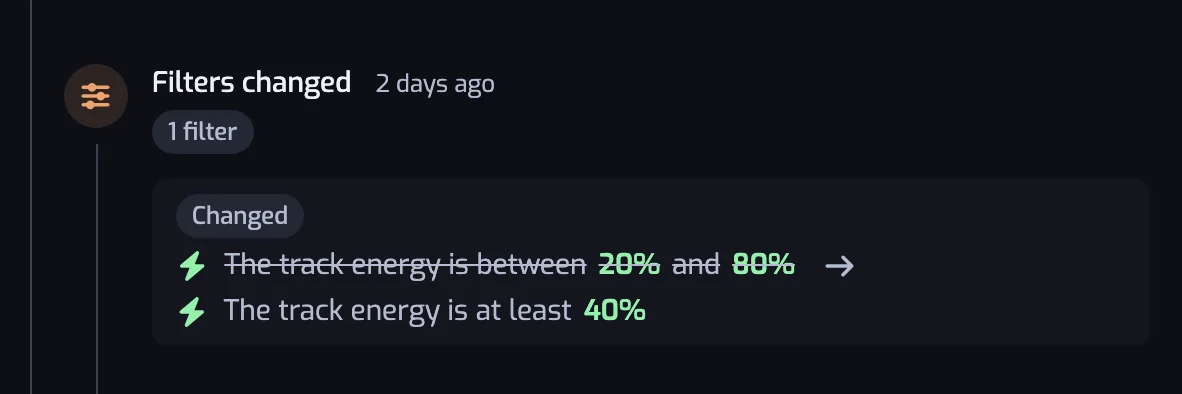
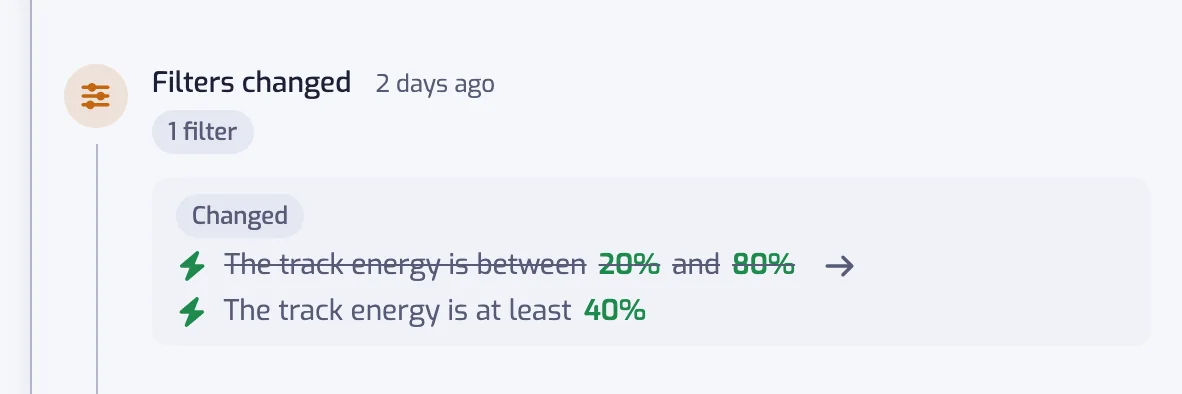
Only filters are recorded. Renaming a playlist or changing its description does not create an entry.
What is not recorded
- Changes you make in Spotify. Add or remove a track in the Spotify app and the history says nothing — it records what Playlistation did. Your change is undone at the next update anyway, which is recorded: see Edits made in Spotify.
- Updates that moved nothing, as above.
- The playlist's name and description.
- Anything before the history existed. Playlists created before this feature shipped start with a single Tracks already in the playlist entry rather than a reconstructed past, because that past was never recorded. Everything from that entry onwards is real.
Older entries
The panel loads 20 entries at a time. Load older changes at the bottom fetches the next 20, and the button disappears when you reach the beginning.
Entries are kept for as long as the playlist is. Delete the playlist and its history goes with it; delete your account and every playlist's history goes with it too.