

Playlists
Results
Results is the section under the filters on a playlist's page. It lists every track the playlist reads and, for each one, which filters it passed. Open Excluded and expand a row to see the exact filter that kept a song out of the playlist, and the value the song got.
The three tabs
Each tab shows its count, and the count next to Results is the number of included tracks.
My library
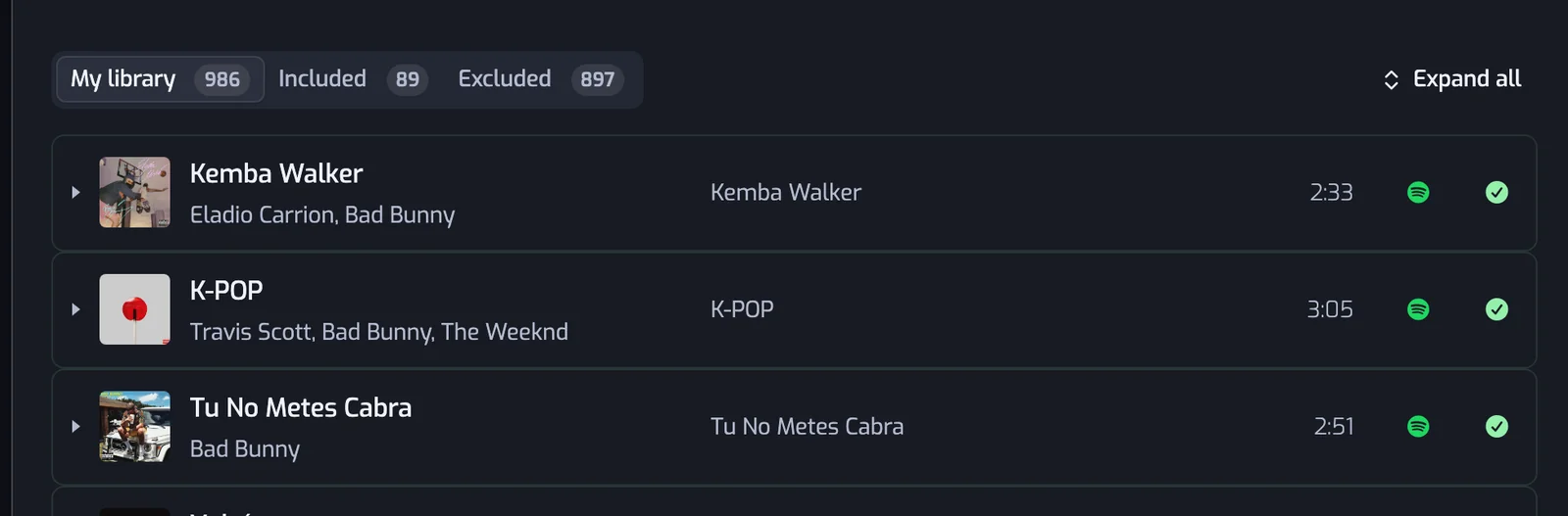
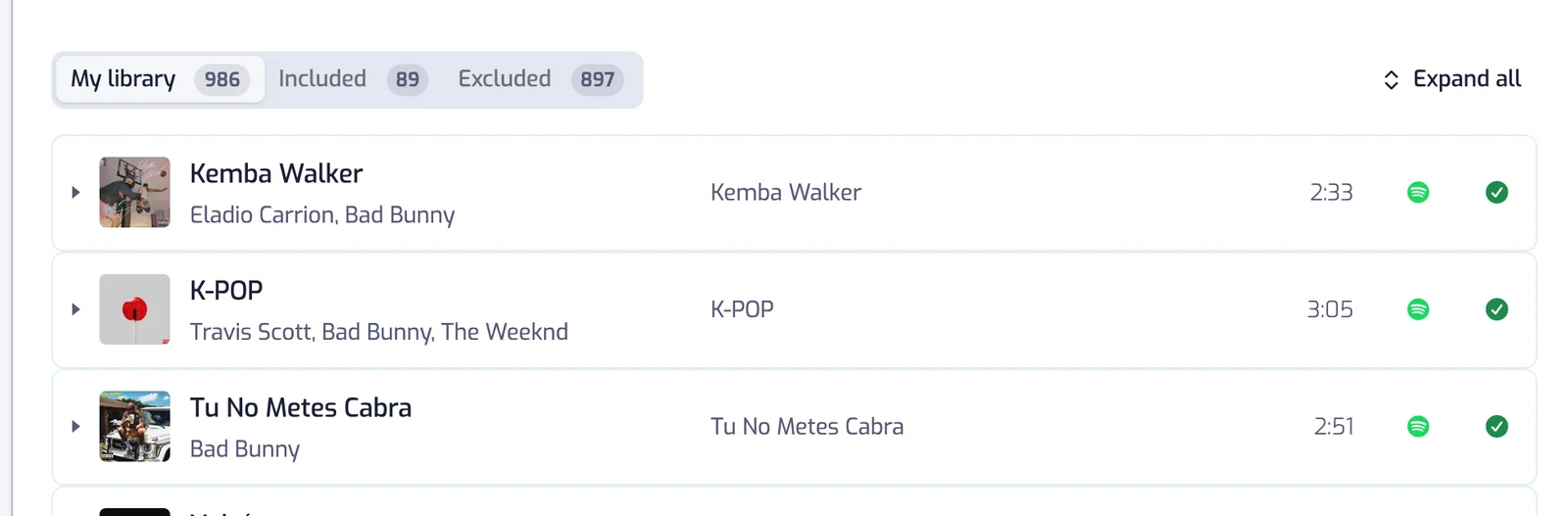
Every track the playlist reads: your Liked Songs. A green check or a red cross on each row says whether the track made it in.
Included
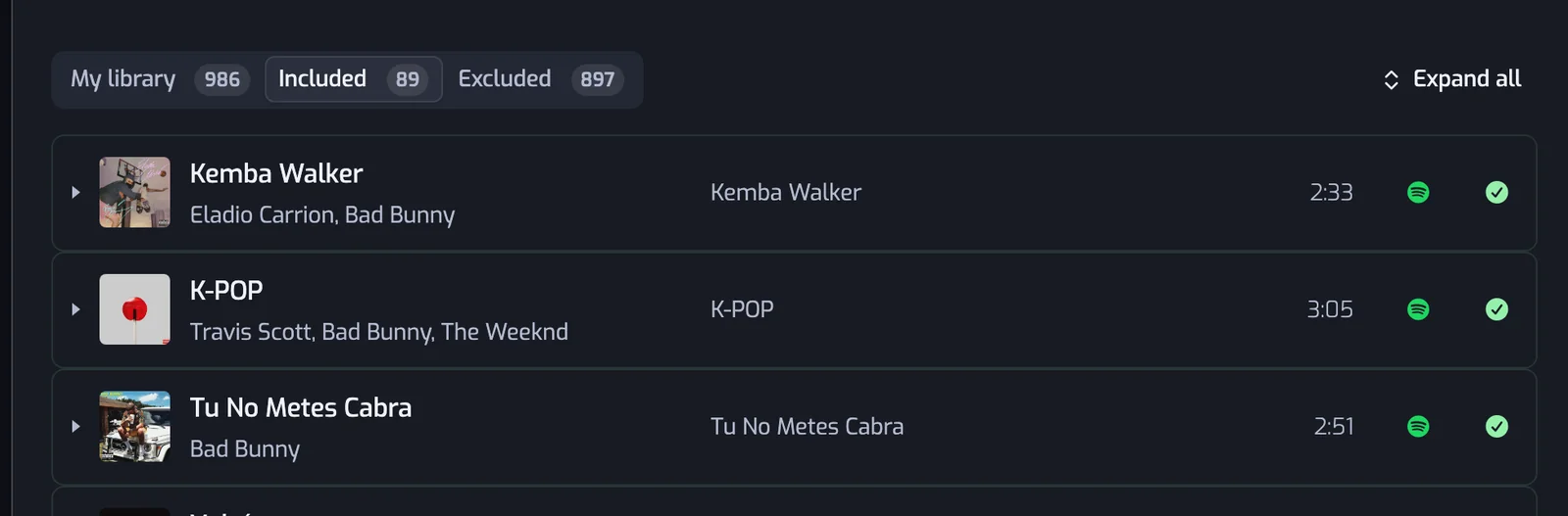
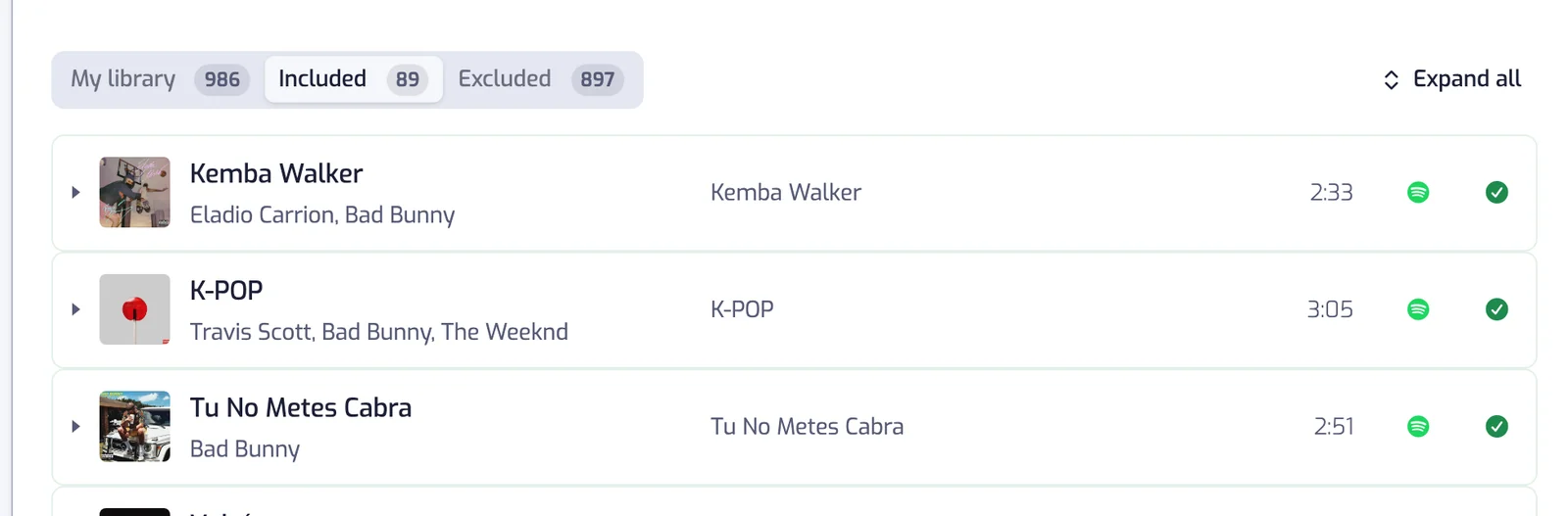
The tracks that pass every filter. They are the tracks of the playlist on Spotify.
Excluded
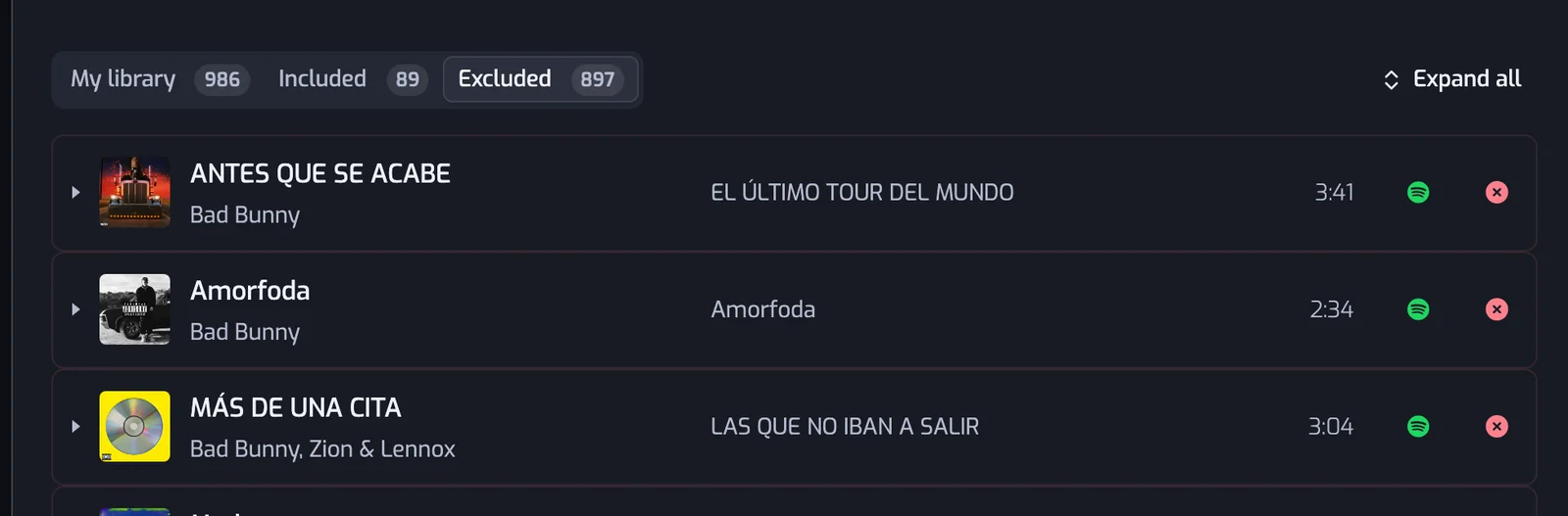
The tracks that fail at least one filter. Open this tab to find out why a song is not in the playlist.
Search
The search box above the tabs matches the title, the artists and the album, and the counts follow your search. When the open tab has no match but another one does, a button takes you there.
A track row


From left to right:
- The arrow opens the row to show its reasons (see below). A click anywhere on the row does the same.
- The cover carries a play button when Spotify offers a 30-second preview of the track: on hover with a mouse, always on a touch screen. Click it to play the preview in the page, click again to pause. Only one preview plays at a time. Tracks without a preview have no button.
- The title and the artists, then the album and the length.
- The Spotify logo opens the track in Spotify.
- The green check means the track is in the playlist; the red cross means a filter keeps it out.
See why a track is in or out
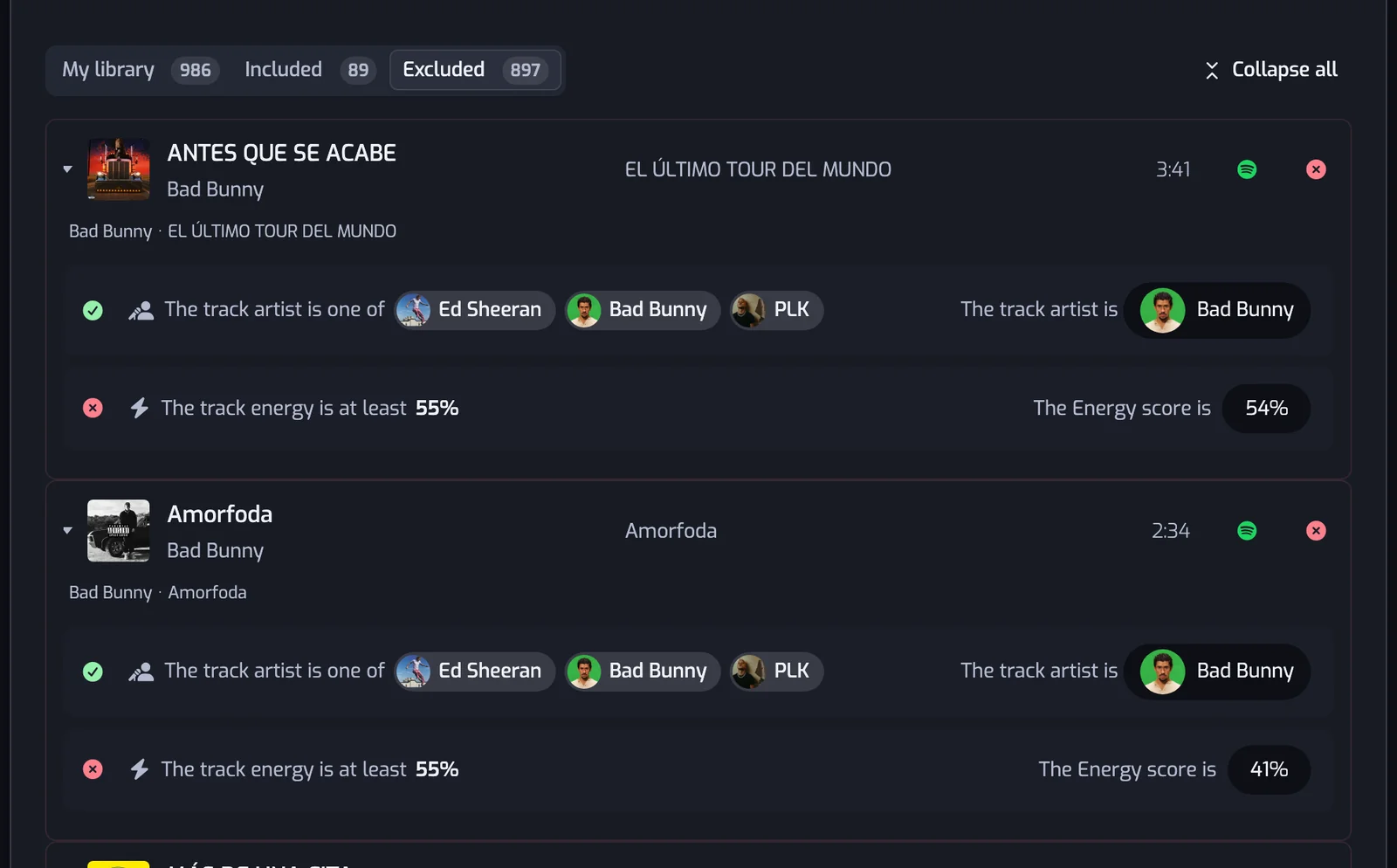
An open row shows, under the title, links to the track's artists and album on Spotify, then one line per filter:
- a green check if the track passes that filter, a red cross if it fails it;
- the filter, as it reads in your list, such as The track energy is at least 55%;
- on the right, what the track has, such as The Energy score is 54%.
Expand all, next to the tabs, opens every row at once; it then reads Collapse all, which closes them.
Find out why a song is missing
- Open the playlist and scroll to Results.
- Click Excluded.
- Type the song's name in the search box.
- Click the song's row and read the line with the red cross: that filter kept it out.
- Loosen that filter, for example widen a range or add the artist. The playlist updates itself.
A song that is not in My library at all is not among your Liked Songs: like it in Spotify, and it joins on the next update.
Download the tracks as CSV
On the Pro plan, Download CSV at the top of the playlist's page saves the Included tracks as a file any spreadsheet opens: title, artists, album, dates, duration, Spotify link, and the value each filter read for the track. On Free and Plus the button carries a Pro tag. To export your whole library, see Export your library.
What was added, and when
Results shows the playlist as it is now. To see which tracks each update added or removed, and why a track left, open History at the top of the playlist's page (see Playlist history).
Common questions
Why is a song I like missing from my playlist?
At least one filter excludes it. In Results, open Excluded, search for the song and expand its row: the filter with a red cross is the one to loosen.
Why is a song in my playlist that should not be?
It passes every filter. In Results, open Included, expand its row and read the values: a filter is likely wider than you meant, such as an energy range that starts too low. Narrow it, or add a filter that excludes the song.
Who can download a playlist as CSV?
Pro plan users, with the Download CSV button on the playlist's page. The file holds the Included tracks.