
Getting started
Getting started
You start at the sign-in button and finish with your first smart playlist built from your Liked Songs playing in Spotify.
Sign in with Spotify
Open playlistation.app. There is no account to create: the app sends you straight to Spotify's sign-in page. Any Spotify account works, free or Premium.
Once you are signed in to Spotify, it shows a consent screen listing what Playlistation is asking for. This screen appears the first time you sign in, while Spotify has no approval from you yet, so you see what the app can do before it does it. Later sign-ins usually skip it.
Spotify asks for six permissions: to read your Liked Songs, to see your profile and email, to read your private playlists, and to create and update playlists. Playlistation only writes to the playlists it created, and it never sees your password: Spotify hands the app a token, and that token is what talks to Spotify. To take the access away later, remove Playlistation from the apps list in your Spotify account settings. Each permission and why it is needed is in Security and privacy.
After you accept, Spotify sends you back to the app and you are signed in.
Accept the terms
After your first sign-in, the app asks you to accept its terms in a dialog titled Terms of use and sale. Tick the box, which links to the terms, then click Accept and continue. The dialog also links to the privacy policy, which you read but do not accept. It has no close button, and nothing can be created or changed until you accept. If you would rather not accept, the dialog points to Settings, where you can sign out or delete your account.
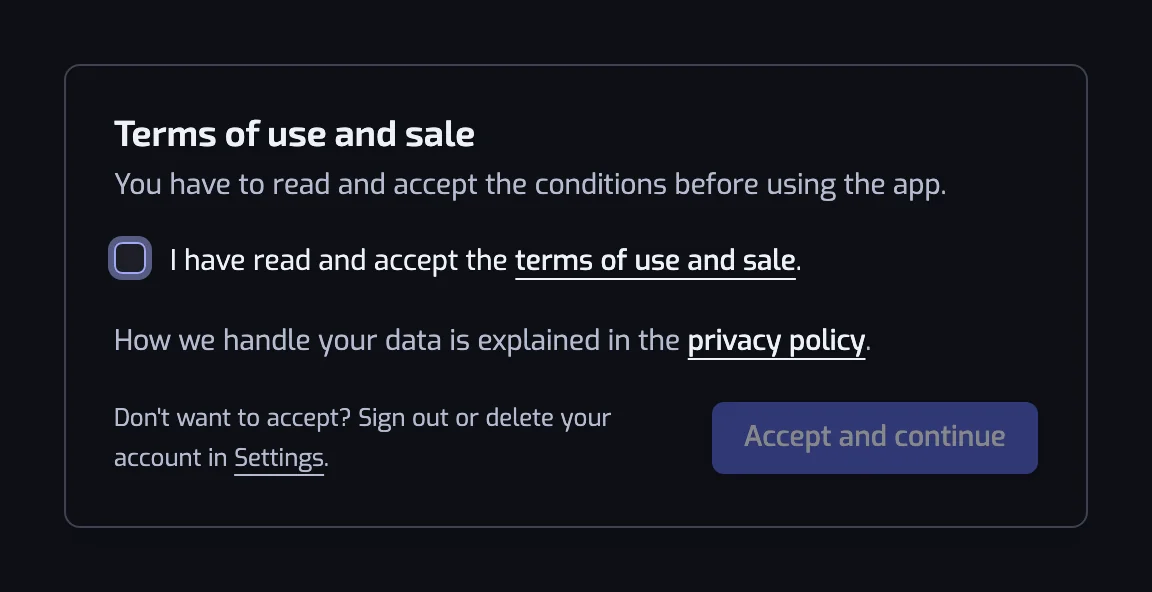
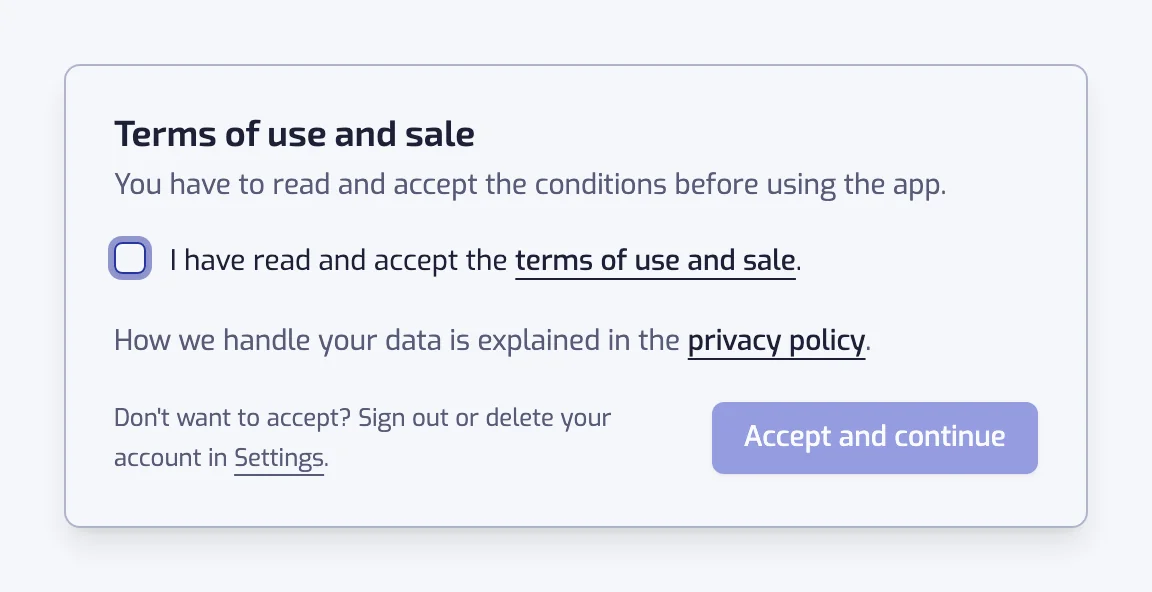
The same dialog comes back when the terms change in a way that needs a new acceptance. Your playlists keep updating in the meantime.
The first read of your library
Right after sign-in, Playlistation reads your Liked Songs for the first time, from the most recently liked, up to your plan's monitoring limit: 1,000 tracks on the Free plan, 3,000 on Plus, your whole library on Pro. Older tracks are not seen, and the app says so on the Playlists page when that happens. See How syncing works.
This first read feeds the playlist suggestions below. While it runs, the Discover page shows a placeholder card with a spinner, and suggestions appear on their own as they are computed.
Pick your starter playlists on Discover
New accounts land on the Discover page. It lists smart playlists built from your own library: your most-liked artists, artists who appear together on your tracks, the genre families your library turns out to be made of, each narrowed to the corner of it you actually live in, your most represented decades, recent periods such as "Likes of the week", and up to three corners of your library that turned out to be unusually crowded, when there are any — a tempo band, a stretch of release years, a run of months when you were adding far more music than usual. Each suggestion shows how many of your liked tracks it holds right now.
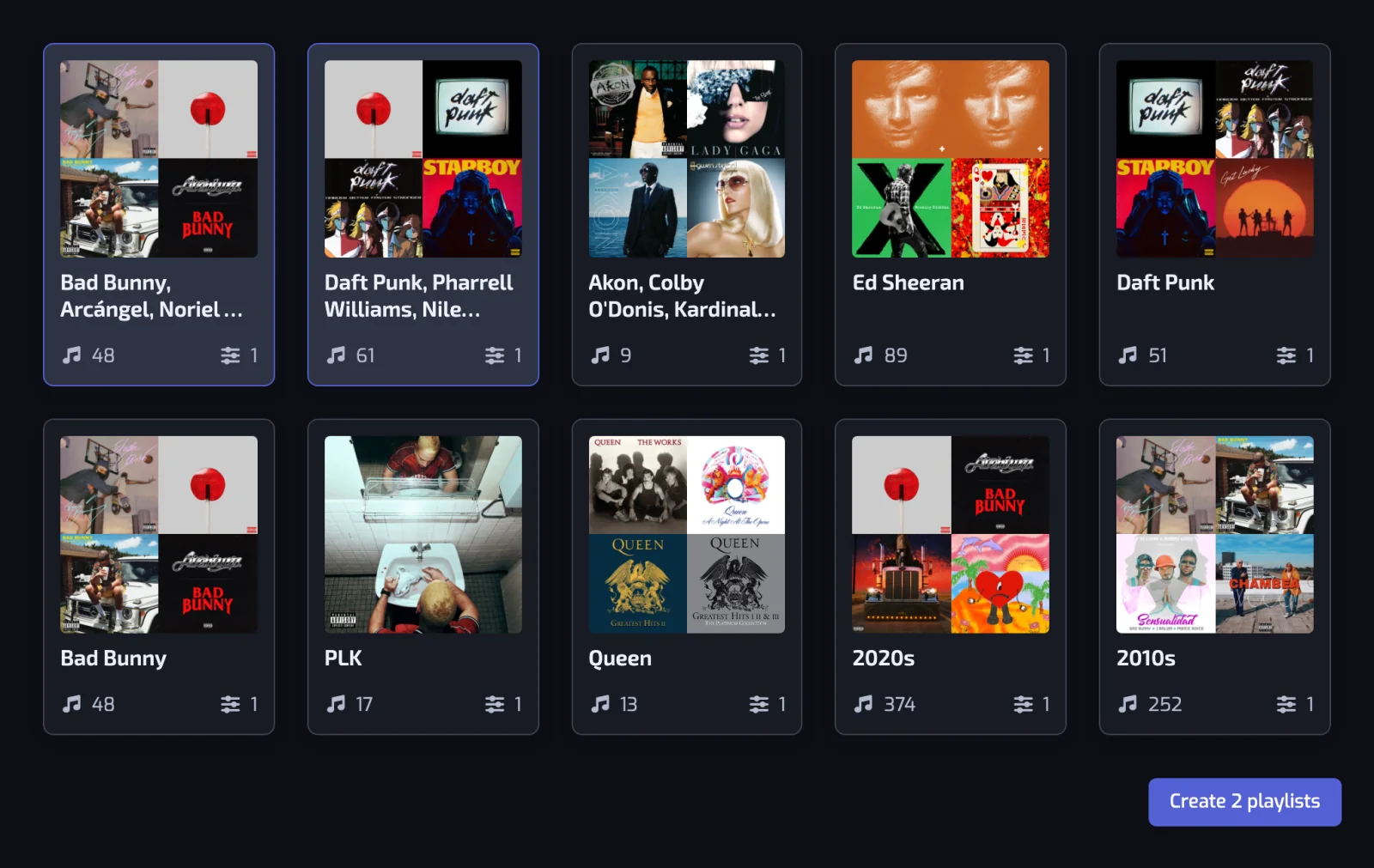
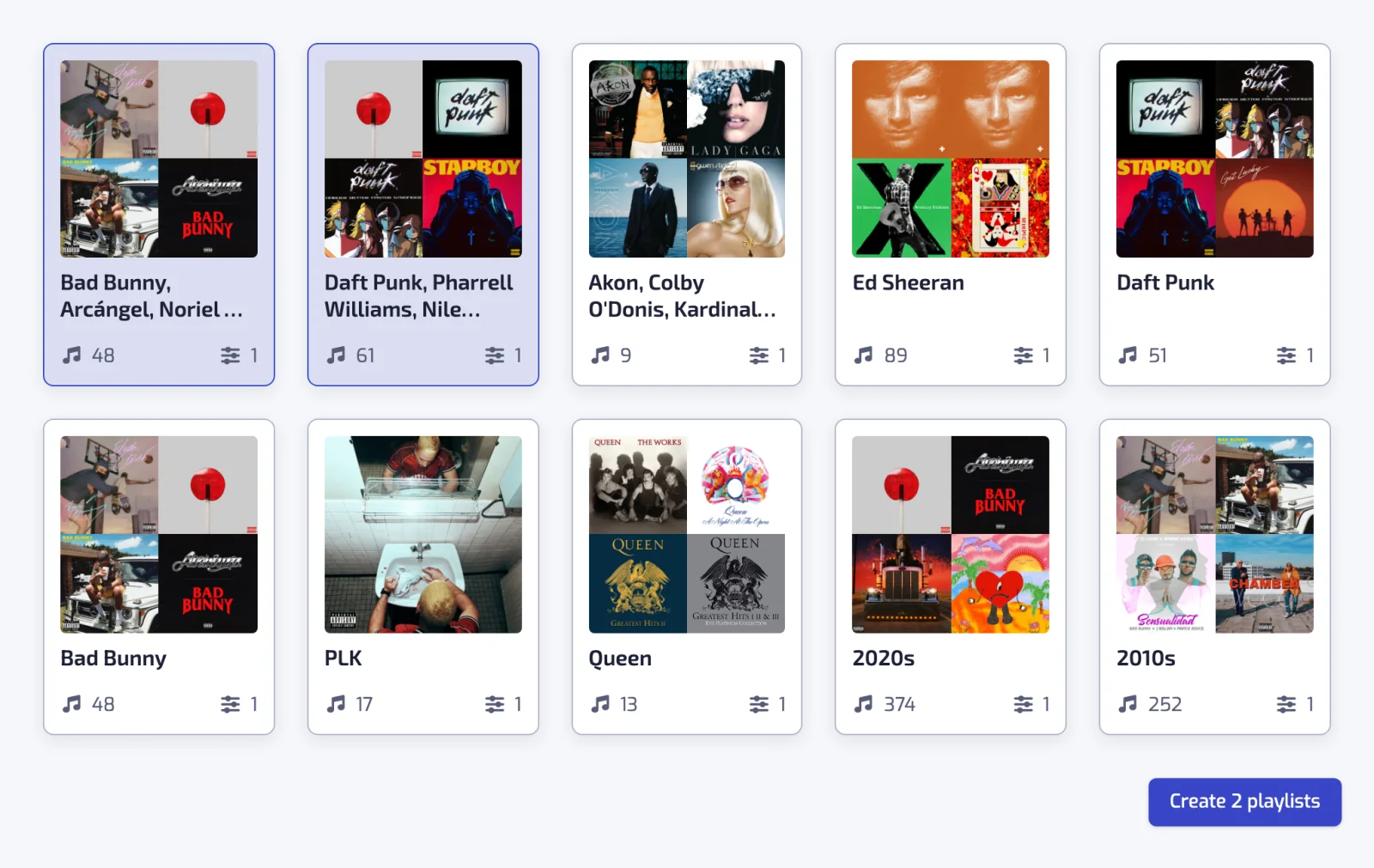
Click the ones you want, then Create 3 playlists (the number follows your selection). Each card also has a preview button, which lists the tracks that suggestion would gather before you create anything. You cannot select more than your plan has room for: the Free plan allows 5 playlists in total. If you would rather build your own, click Skip. You can come back to Discover at any time. How suggestions are computed, how long a batch lasts and what happens to the ones you used is in One-click playlists.
Create a playlist by hand
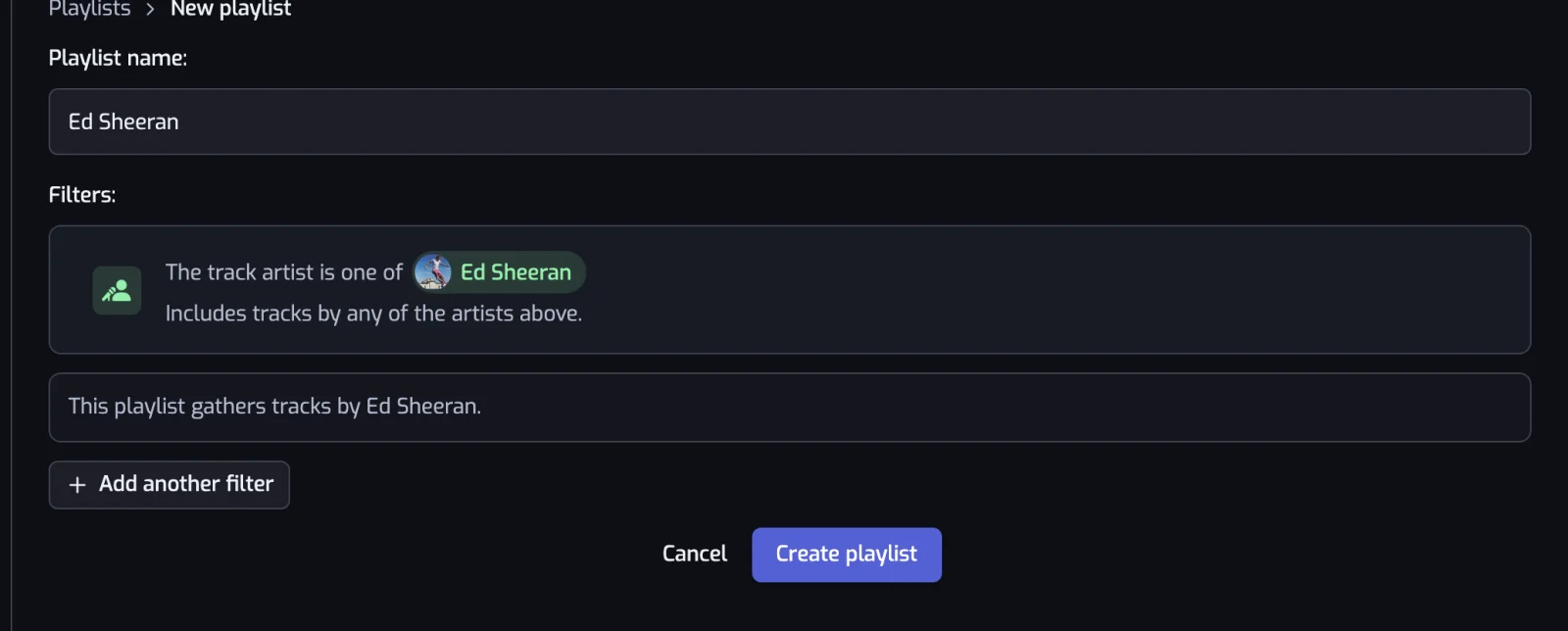
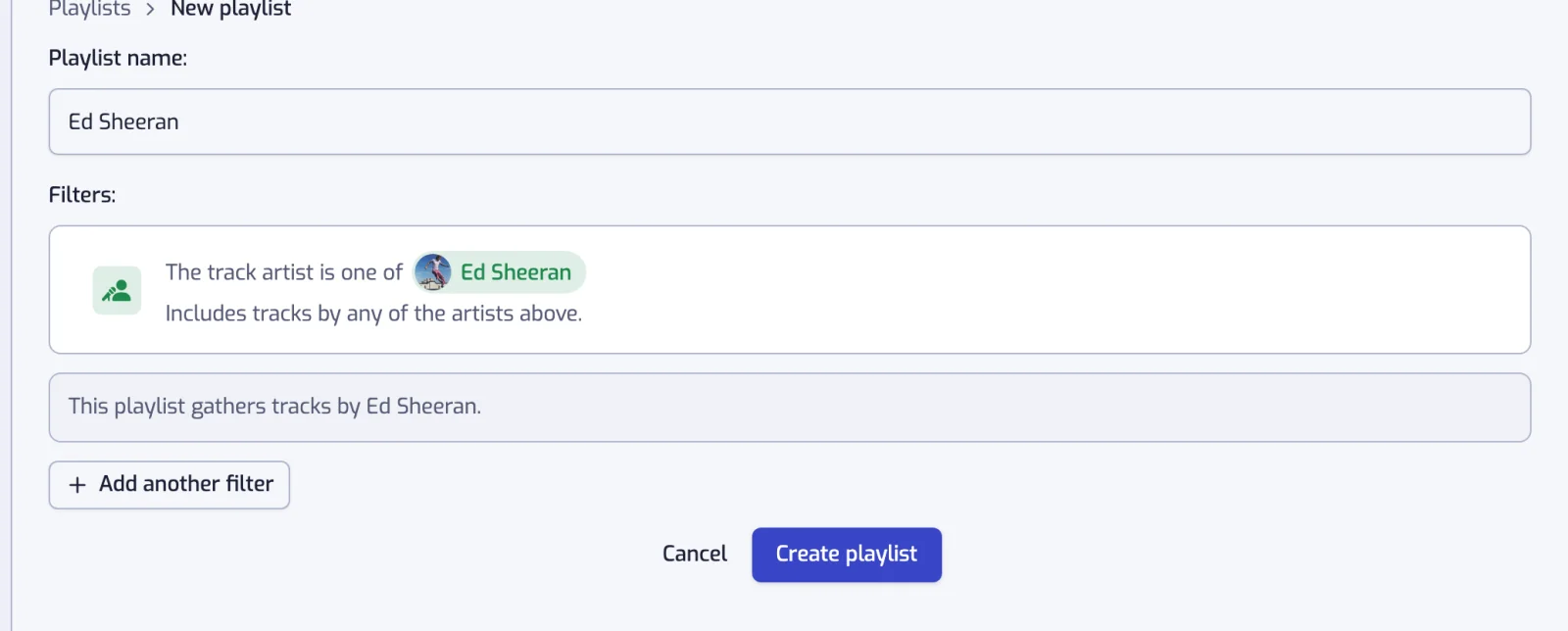
On the Playlists page, click Create playlist, pick a filter, set it and click Create playlist again. The steps, with a picture of each, are in Creating a playlist.
What happens right after you create it
Playlistation creates the playlist on Spotify and queues its first sync; the page updates on its own and the tracks appear without a refresh. The first sync usually takes moments; a large library or a busy queue can make it longer, because everything goes through Spotify's rate-limited API. What the page shows in the meantime is in How syncing works.
Find it in Spotify
The playlist is in your Spotify library like any other. From the app, open the playlist's action menu and choose "Open in Spotify", or use the "Play on Spotify" button on the playlist page; its "Copy Spotify link" icon button gives you the URL to share. Spotify builds the cover mosaic from the first tracks a little after the first sync, and Playlistation picks it up on its next update.
From here, keep liking tracks in Spotify. Playlistation checks your Liked Songs on your plan's schedule and adds each new like to the playlists it matches. That schedule, and everything else about the updates, is in How syncing works.
Staying connected to Spotify
Spotify ends an app's authorization six months after you grant it. Nothing Playlistation does in between extends that: only a new trip through Spotify's own screen starts another six months. So roughly twice a year the app needs one click from you, and it asks long before anything stops working.
The banner. Over the last 90 days a line sits at the top of every page: Spotify asks you to authorize Playlistation again every 6 months, with the date yours runs out and a Reconnect Spotify button. Remind me later puts it away for a day. In the final week it stays.


In Settings. Under Account, the Spotify section names the account you are connected with and gives the end under Expires, with the days left and the Reconnect Spotify button beside it. The date says "around": Spotify says six months, Playlistation counts 180 days to stay on the early side, and neither is an exact promise. An account connected before Playlistation started recording that date shows Not recorded and keeps its banner, since the reconnection is worth offering even when we cannot name the day. See Settings.
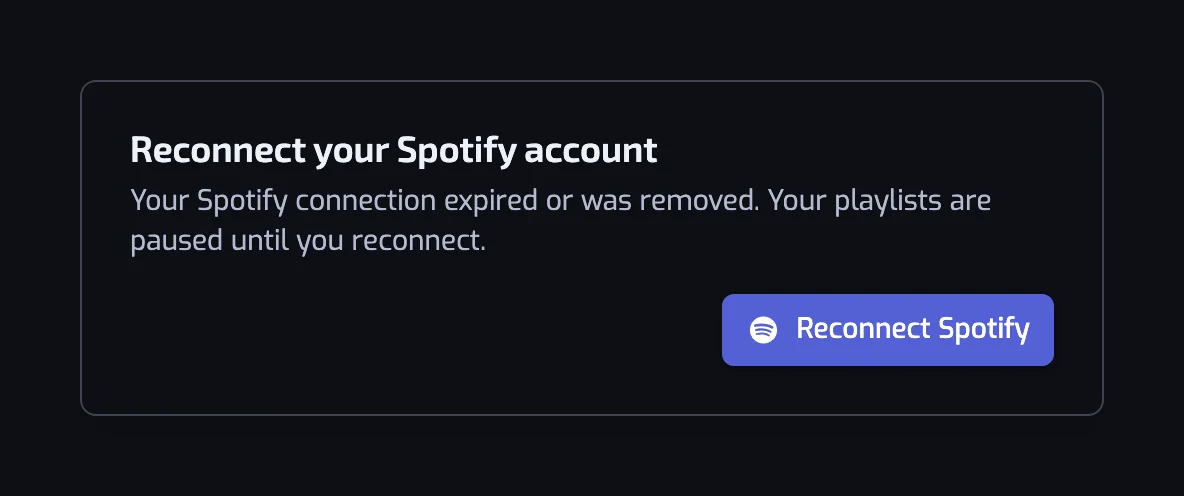
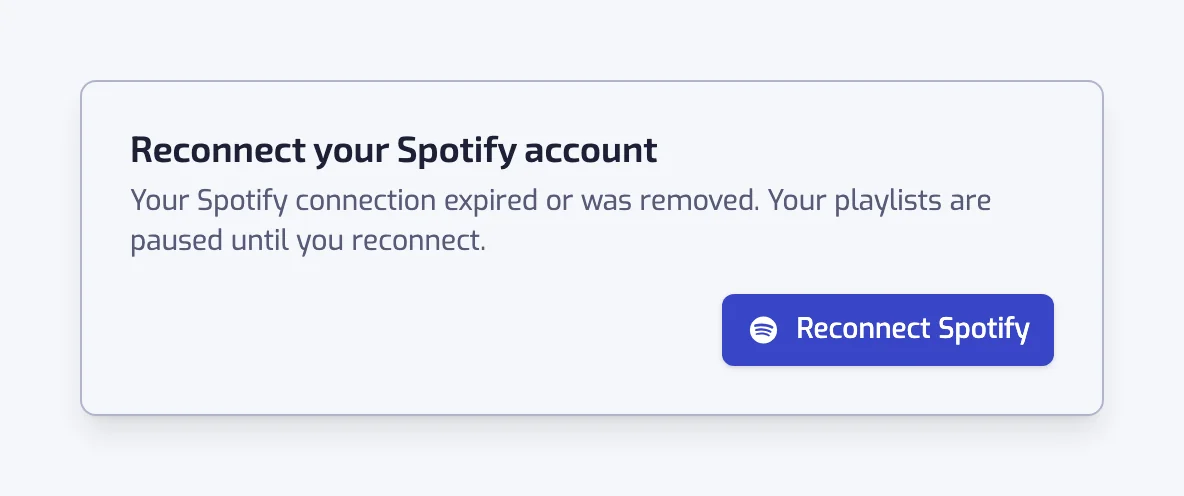
If it has already run out, a dialog you cannot close takes its place: Reconnect your Spotify account, saying your playlists are paused until you do. Nothing syncs and you cannot edit anything until then, which is why the dialog has no close button. You are still signed in to Playlistation; the button in the dialog renews Spotify's access, and nothing else is needed.
The emails. One reminder arrives about a month before, another about a week before, and neither is ever sent twice. Both need the date you last authorized Playlistation, so an account connected before the app started recording that date gets no reminder at all; the banner and the Spotify section in Settings are its warning. If the connection has already stopped working, a separate email says so, and says that your playlists and their filters are untouched. That one names no date and goes to everyone. All of them come in your language, with a single button that starts the reconnection. The only other emails are about a paid plan, listed in Plans and billing, and there is no newsletter.
Reconnecting takes one click. The button sends you to Spotify and back. You already approved Playlistation, so Spotify usually sends you straight back without showing you anything, and everything resumes: the playlists parked while the connection was down go back to Active with an update queued, and the app tells you how many are syncing again.
You may never see any of this. A Playlistation session lasts at most 75 days from the day it was created, however often you use it, so every couple of months the app takes you back through Spotify by itself. You click nothing, and if that browser is still signed in to Spotify you see no screen. The round-trip lands you back where you were and starts the six months over, well before they would have run out.
Common questions
Do I need to create an account or a password?
No. You sign in with your Spotify account on Spotify's own page, and that is your Playlistation account. Playlistation never sees your Spotify password and has no password of its own.
Why does Spotify ask me to reconnect Playlistation every six months?
Spotify ends an app's access six months after you grant it, and Playlistation cannot extend it. Over the last 90 days a banner offers Reconnect Spotify, and reminder emails usually arrive about a month and a week before. If the access runs out, your playlists pause, with their filters untouched, until you click the button.